Few computer problems feel as instantly frustrating as a keyboard that suddenly refuses to type letters. One moment you are writing an email, entering a password, or finishing a report; the next, your keys do nothing, type the wrong characters, or respond only after repeated pressing. While software settings can sometimes be the cause, many “keyboard not typing letters” problems come down to hardware issues: dirt, loose connections, liquid damage, worn switches, failing batteries, or internal component failure.
TLDR: If your keyboard is not typing letters, start with the simple hardware checks: reconnect it, try a different USB port, replace or recharge batteries, and test it on another device. Clean the keys carefully, look for stuck keys, and inspect the cable, connector, or wireless receiver for damage. If certain keys still fail after cleaning and testing, the keyboard may have worn switches, liquid damage, or a faulty circuit board and may need repair or replacement.
Start by Identifying the Type of Keyboard Problem
Before taking anything apart, pay attention to how the keyboard is failing. Different symptoms point to different hardware causes. A keyboard that does not respond at all may have a power or connection problem. A keyboard where only a few letters fail may have debris, damaged switches, or broken traces under the keys. A wireless keyboard that works intermittently may have weak batteries, interference, or a faulty receiver.
Ask these quick questions:
- Do no keys work at all? This often suggests a connection, power, receiver, or internal board issue.
- Do only some letters fail? Dirt, liquid residue, worn key switches, or damaged membrane contacts may be responsible.
- Do keys repeat or type multiple letters? A sticky switch, moisture, or mechanical wear could be causing double input.
- Does the keyboard work on another computer? If yes, the keyboard hardware may be fine and the problem may be software-related.
- Does another keyboard work on your computer? If yes, your original keyboard is likely the problem.
This basic diagnosis saves time and helps you avoid replacing a keyboard that only needs cleaning—or cleaning one that has a broken circuit board.
Check the Physical Connection First
For a wired keyboard, the first hardware step is simple: unplug it and plug it back in. It sounds obvious, but loose connectors are common, especially on laptops with docking stations or desktops where cables get tugged behind the desk. If the keyboard uses USB, try another port. A failing USB port can make the keyboard appear dead even when the keyboard itself is fine.
Look closely at the connector. A bent USB plug, cracked housing, or loose cable end can interrupt the signal. If the cable has sharp bends, fraying, exposed wire, or a loose spot near the keyboard body, the internal wires may be damaged. Try gently wiggling the cable while typing in a text editor. If the keyboard works only at certain angles, the cable is likely failing.
For older PS/2 keyboards, make sure the plug is fully seated and that none of the pins are bent. Unlike USB, PS/2 devices usually need to be connected before the computer starts. If you plug in a PS/2 keyboard while the computer is already running, restart the machine to test it properly.
For Wireless Keyboards, Think Power and Signal
Wireless keyboards add a few more hardware points of failure. Start with the batteries. Even if your keyboard has an indicator light, weak batteries can cause missing letters, lag, random disconnection, or complete failure. Replace disposable batteries with fresh ones or fully recharge the keyboard if it has a built-in battery.
If your keyboard uses a USB receiver, remove it and plug it back in. Try a different USB port, preferably one close to the keyboard. Desktop computers often have rear USB ports that are shielded by the case, desk, or other electronics. If possible, use a short USB extension cable to bring the receiver closer to the keyboard.
Wireless interference can also cause strange typing behavior. Move the keyboard away from routers, external drives, metal surfaces, Bluetooth speakers, and other wireless devices. If the keyboard uses Bluetooth, make sure it has not paired with another computer, tablet, or phone nearby.
Clean the Keyboard Thoroughly but Carefully
Keyboards collect an impressive amount of dust, crumbs, hair, skin oils, and other debris. Over time, this buildup can prevent keys from pressing fully or returning properly. If your keyboard is not typing letters, cleaning is one of the most effective hardware fixes.
Start with a basic cleaning:
- Turn off the computer or disconnect the keyboard.
- Hold the keyboard upside down and gently shake it.
- Use compressed air to blow between the keys in short bursts.
- Brush around the keys with a soft, clean brush.
- Wipe the key surfaces with a microfiber cloth lightly dampened with isopropyl alcohol.
Do not soak the keyboard, spray liquid directly onto it, or use household cleaners that may leave residue. Isopropyl alcohol is preferred because it evaporates quickly and is less likely to damage electronics when used sparingly.
If you have a mechanical keyboard, you may be able to remove the keycaps with a keycap puller. This lets you clean beneath the keys more effectively. Take a photo of the keyboard layout before removing keycaps so you can put everything back correctly. For laptop keyboards, be much more cautious. Laptop keys often use delicate scissor mechanisms that can snap if pulled incorrectly.

Look for Stuck, Jammed, or Damaged Keys
A single stuck key can make the keyboard behave as if other letters are not working. For example, if Ctrl, Alt, Shift, or Fn is physically stuck, normal letter keys may trigger shortcuts or appear not to type at all. Press each modifier key several times and make sure it springs back smoothly.
Check whether any letter keys feel different from the others. A healthy key should move down and return with a consistent feel. If a key feels mushy, crunchy, sticky, or loose, something may be blocking it or the switch underneath may be damaged. On mechanical keyboards, a bad switch can often be replaced if you are comfortable with soldering or if the keyboard supports hot-swappable switches. On membrane keyboards, individual key repair is less practical because the contact layers are integrated.
Sticky keys caused by spilled drinks can be particularly troublesome. Sugar, milk, coffee, and soda can dry into a residue that glues key mechanisms together and corrodes internal contacts. Even if the keyboard works immediately after a spill, it may begin failing days or weeks later.
What to Do After Liquid Damage
If liquid was spilled on the keyboard, act quickly. Disconnect the keyboard immediately or power off the laptop. Electricity and liquid are a dangerous combination for small circuits. Turn the keyboard upside down to drain as much liquid as possible, then blot gently with a lint-free cloth.
For an external keyboard, let it dry for at least 24 to 48 hours in a warm, dry place. Do not use a hair dryer on high heat, as this can warp plastic or push liquid deeper into the keyboard. If the spill involved water only, drying may be enough. If it was coffee, juice, soda, or alcohol, residue may remain and cause ongoing problems.
For laptops, liquid damage is more serious because the keyboard sits above sensitive components such as the motherboard, storage drive, and battery. If a laptop keyboard stops typing after a spill, it is wise to have it inspected. Continuing to power it on can turn a keyboard issue into a much more expensive repair.
Test the Keyboard on Another Device
One of the cleanest ways to separate hardware from computer-related issues is to test the keyboard on another device. Plug a wired keyboard into a different computer. Pair a Bluetooth keyboard with another laptop or tablet. If the same keys fail on the second device, the keyboard itself is almost certainly at fault.
Likewise, try a different keyboard on the original computer. If the replacement keyboard works perfectly, your computer’s USB ports, operating system, and typing settings are probably fine. This simple swap test is especially useful because it prevents guesswork.
If neither keyboard works on the same computer, inspect the machine’s ports. USB ports can loosen, collect debris, or fail electrically. Shine a light into the port and look for dust, bent internal tabs, or visible damage. Never scrape aggressively inside a port; use compressed air gently if you see dust.
Understand Common Internal Keyboard Failures
If cleaning and connection checks do not help, the problem may be inside the keyboard. Different keyboard designs fail in different ways.
- Membrane keyboards: These use layers of flexible material with conductive traces. Over time, the contacts can wear out, tear, or become contaminated.
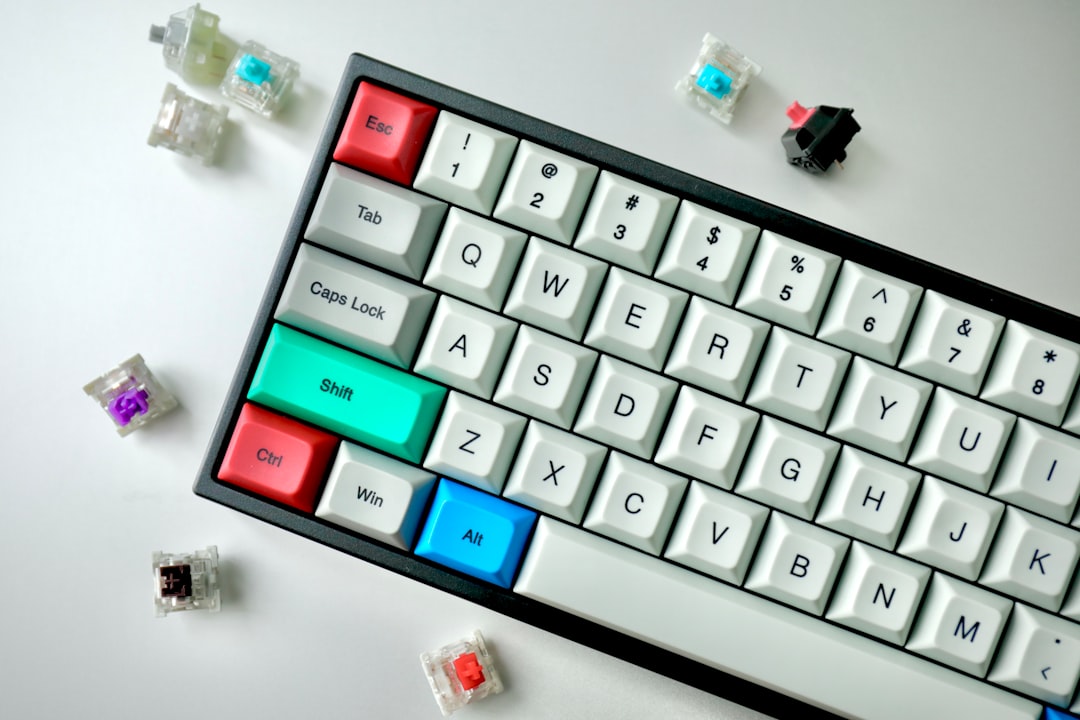
- Mechanical keyboards: Each key has an individual switch. Switches can fail, chatter, stick, or stop registering after heavy use.
- Laptop keyboards: These are thin and compact, with fragile key mechanisms and ribbon cables that connect to the motherboard.
- Wireless keyboards: In addition to switches and contacts, they can suffer from battery compartment corrosion, receiver failure, or charging port damage.
On an external keyboard, repairs may or may not be worth it depending on the keyboard’s value. A budget membrane keyboard is usually cheaper to replace. A high-end mechanical keyboard, however, may be worth repairing, especially if the issue is a replaceable switch, stabilizer, or USB cable.
Inspect the Battery Compartment and Charging Port
For battery-powered keyboards, remove the batteries and look inside the compartment. White, green, or crusty residue is a sign of battery leakage or corrosion. Corrosion can block electrical contact and prevent the keyboard from powering on. If the damage is mild, you can clean the contacts with a cotton swab and a small amount of isopropyl alcohol. Allow everything to dry fully before inserting new batteries.
Rechargeable keyboards can develop charging issues. If the keyboard will not turn on or quickly dies after charging, try a different cable and charger. Examine the charging port for lint, looseness, or damage. A worn charging port may cause the keyboard to work only while the cable is held at a certain angle.
Do Not Ignore Laptop Keyboard Ribbon Cables
On laptops, the keyboard usually connects internally through a thin ribbon cable. If the laptop has been dropped, repaired, or opened recently, this cable may be loose or misaligned. Symptoms can include whole rows of keys not working, random key failures, or no keyboard response at all.
Reseating a laptop keyboard ribbon cable can fix the issue, but it is not risk-free. Laptop parts are compact, and the tiny locking tabs that hold ribbon cables in place can break easily. If you are not comfortable opening a laptop, contact a qualified technician. For many modern laptops, the keyboard is integrated into the top case, making replacement more involved than simply swapping a part.
When Replacement Is the Best Fix
Sometimes the most practical hardware fix is replacement. If the keyboard has severe liquid damage, multiple dead keys, a broken cable, corrosion, or a cracked circuit board, repair may cost more than a new unit. If your keyboard is inexpensive and several years old, replacing it can save time and frustration.
However, do not rush to throw away a keyboard before checking the basics. Many non-typing keyboards come back to life after a cable reseat, battery change, receiver repositioning, or deep cleaning. The key is to move step by step, from simple external checks to deeper hardware inspection.
How to Prevent Keyboard Hardware Problems
Once your keyboard is working again, a few habits can help prevent the same issue from returning:
- Keep food and drinks away from your keyboard whenever possible.
- Clean it regularly with compressed air and a microfiber cloth.
- Avoid pulling the cable when moving a wired keyboard.
- Replace weak batteries early instead of waiting for intermittent failure.
- Use a keyboard cover in dusty environments, but remove and clean it often.
- Store wireless receivers safely so they do not get lost or bent.
A keyboard is a simple-looking device, but it relies on precise electrical contacts, clean mechanical movement, stable power, and reliable connections. When letters stop typing, the problem is often something small and physical rather than mysterious. With patient troubleshooting, careful cleaning, and a few smart tests, you can usually find out whether your keyboard needs a quick fix, a deeper repair, or a well-earned replacement.