Clear visual communication is essential in modern workplaces, classrooms, and digital products. As more processes move online, the ability to explain tasks, workflows, and technical instructions visually has become a competitive advantage. Screen annotation software enables professionals to transform ordinary screenshots and recordings into precise, easy‑to‑follow visual guides that reduce confusion and accelerate understanding.
TLDR: Screen annotation software allows users to capture screenshots or recordings and enhance them with callouts, highlights, arrows, and text to create effective visual guides. It improves clarity, reduces support requests, and streamlines training across industries. The best tools combine ease of use, collaboration features, and flexible export options. Choosing the right solution depends on workflow, team size, and the level of detail required.
Whether you are onboarding employees, documenting software procedures, creating tutorials, or providing customer support, annotated visuals can dramatically improve communication. Instead of relying on lengthy written explanations, visual guides show users exactly where to look and what action to take.
What Is Screen Annotation Software?
Screen annotation software allows users to capture what appears on their computer or device screen and add visual elements such as:
- Arrows and lines to direct attention
- Text boxes for explanations and instructions
- Highlights and spotlights to emphasize specific areas
- Blur or masking tools to hide sensitive information
- Shapes and callouts for structured labeling
These tools are designed to create clear, structured visual materials that guide viewers step by step. Many platforms also support screen recording with live annotation, enabling dynamic demonstrations rather than static screenshots.
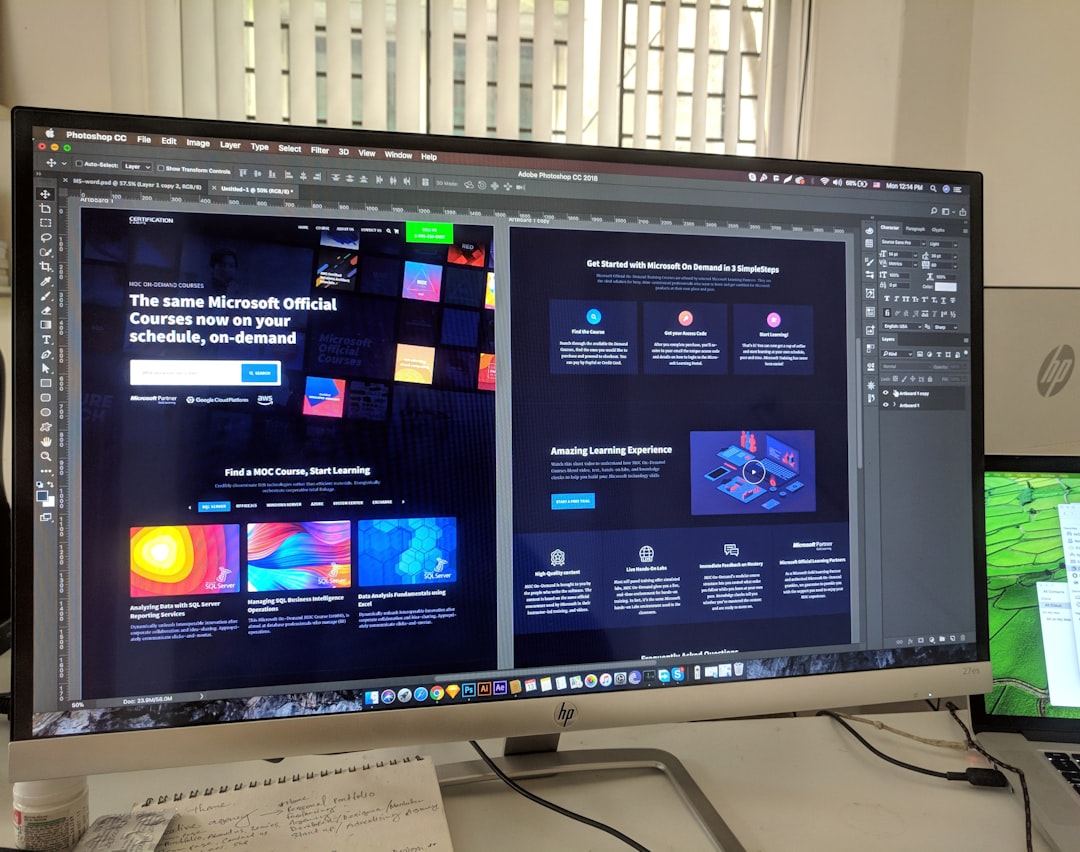
By combining imagery with concise text, annotated guides accommodate different learning styles and reduce ambiguity. In technical environments especially, this visual precision can prevent costly misunderstandings.
Why Visual Guides Are More Effective Than Text Alone
People process visual information significantly faster than written text. When instructions rely exclusively on paragraphs of explanation, readers must interpret and mentally map the description onto their interface. This extra cognitive effort increases the likelihood of error.
Screen annotation software addresses this gap by:
- Reducing interpretation errors
- Shortening learning curves
- Improving information retention
- Decreasing repetitive support inquiries
For example, a support guide that says “Click the settings icon in the upper-right corner” may be unclear to some users. A screenshot with a bright circle around the exact icon eliminates uncertainty immediately.
Key Features to Look For
Not all screen annotation tools offer the same functionality. When selecting software for professional use, pay close attention to the following capabilities:
1. Capture Flexibility
The ability to capture full screens, selected regions, scrolling windows, and specific application windows is critical. Advanced tools also allow timed captures and multi-monitor support.
2. Annotation Variety
A robust set of annotation tools ensures adaptability across various use cases. Look for customizable arrows, adjustable opacity highlights, numbered steps, and consistent styling options.
3. Real-Time Annotation
For live presentations and training sessions, real-time annotation during screen recording can significantly enhance engagement and clarity.
4. Collaboration Tools
Modern teams require shared editing, commenting features, and cloud-based storage. This ensures guides remain current and accessible.
5. Export and Integration Options
Professional environments benefit from multiple export formats such as PNG, PDF, MP4, and direct links. Seamless integration with documentation platforms and project management systems is also valuable.
6. Security Controls
In regulated industries, tools that provide data encryption, secure sharing permissions, and controlled access are essential.

Use Cases Across Industries
The flexibility of screen annotation software makes it applicable across a wide range of sectors. Below are some common professional applications:
Corporate Training and Onboarding
Human resources and training departments use annotated guides to walk new employees through internal systems, compliance portals, and workflow procedures. Visual onboarding materials standardize instruction and ensure consistency.
Technical Support and Customer Service
Support teams create step-by-step troubleshooting guides with annotated screenshots to reduce ticket resolution times. Instead of responding repeatedly with detailed written descriptions, agents can share links to structured visual documentation.
Software Development and QA
Developers and quality assurance teams frequently rely on annotated screenshots to highlight bugs, user interface inconsistencies, or feature suggestions. Clear visual context speeds up debugging and reduces back-and-forth clarification.
Education and E-Learning
Educators use annotated recordings to explain complex processes, from data analysis to graphic design workflows. Students benefit from the ability to pause, review, and visually trace each step.
Marketing and Content Creation
Marketing professionals create visual walkthroughs for product demonstrations, landing page explanations, and promotional tutorials. Annotated imagery enhances credibility and improves comprehension.
Best Practices for Creating Effective Visual Guides
Owning screen annotation software is only part of the equation. The clarity and structure of your guides ultimately determine their success.
Keep Annotations Concise
Avoid overcrowding the screen with excessive text. Short, direct instructions combined with visual markers are more effective than paragraphs of explanation.
Maintain Visual Hierarchy
Use consistent color coding and numbering systems to guide viewers logically from step to step. Primary actions should stand out clearly from secondary details.
Use Contrast Strategically
Highlight important elements with colors that contrast strongly against the background while maintaining accessibility standards.
Protect Sensitive Information
Before distributing guides, use blur or masking features to conceal confidential data such as account numbers, internal URLs, or personal information.
Update Content Regularly
Digital interfaces evolve frequently. Outdated screenshots can quickly undermine trust. Establish a review schedule to keep all visual documentation accurate.

Benefits for Organizations
Implementing screen annotation software delivers measurable organizational benefits:
- Reduced Support Costs: Clear guides minimize repetitive help requests.
- Improved Productivity: Employees spend less time seeking clarification.
- Faster Onboarding: New hires access standardized, self-paced instructions.
- Higher Customer Satisfaction: Users resolve issues more efficiently.
- Better Compliance Documentation: Visual records demonstrate procedural adherence.
These advantages compound over time, particularly in large organizations with complex digital ecosystems.
Cloud-Based vs. Desktop Solutions
When evaluating options, it is important to compare deployment models.
Cloud-based platforms offer remote access, collaboration features, and automatic updates. They are ideal for distributed teams and organizations prioritizing flexibility.
Desktop applications often provide advanced editing capabilities and offline functionality. They may be better suited for security-sensitive environments with strict data control requirements.
A hybrid approach, where captures are created locally and shared via secure cloud storage, is increasingly common.
Emerging Trends in Screen Annotation Technology
Technological advancement continues to expand the capabilities of annotation tools. Notable developments include:
- AI-assisted annotation that automatically suggests highlights or step numbering
- Optical character recognition (OCR) to extract and edit on-screen text
- Interactive guides that allow users to click through simulated workflows
- Integrated analytics measuring viewer engagement with tutorials
These innovations are transforming visual documentation from static images into interactive learning experiences.
How to Select the Right Solution
Choosing the appropriate screen annotation software requires a structured evaluation process. Consider the following criteria:
- Scope of Use: Individual, team, or enterprise deployment
- Complexity of Workflows: Basic screenshots or multi-layered interactive tutorials
- Budget Constraints: Subscription models versus perpetual licenses
- Security Requirements: Compliance with industry standards
- Integration Needs: Compatibility with existing systems
Conducting trial periods with selected tools can provide valuable insight into practical usability and efficiency.
Conclusion
Screen annotation software has evolved into a vital instrument for creating professional visual guides. By combining clarity, structure, and visual emphasis, these tools transform complex instructions into accessible learning materials. Organizations that adopt thoughtful documentation practices supported by reliable annotation tools gain significant advantages in efficiency, accuracy, and communication quality.
In an increasingly digital landscape, the ability to show rather than merely tell is no longer optional. It is a foundational element of effective communication and operational excellence.