For most live producers, OBS Studio should be the hub, Voicemeeter should handle tricky audio routing, and VirtualDJ should stay focused on performance playback. OBS Studio is free and open source, which makes it the safest starting point for small teams and solo creators [source: OBS]. The best setup is rarely one app doing everything. It is usually two or three tools working cleanly together.
TLDR: Use OBS Studio if you need reliable streaming and scene control. Use VirtualDJ if your show depends on music mixing, visuals, stems, or DJ cues. Add Voicemeeter when you need to send a mic, deck audio, browser audio, and game sound into separate channels; for example, a two-hour livestream with 2 cameras, 1 DJ controller, and 3 audio sources is much easier to control with Voicemeeter feeding OBS. For paid productions, vMix or Wirecast may save setup time, but they cost more.
1. OBS Studio: best central control room
OBS Studio is the strongest choice for livestreaming, recording, and switching between scenes. It handles cameras, screen capture, overlays, browser sources, audio meters, and stream output in one interface. It is also widely supported, so guides, plug-ins, and fixes are easy to find.
OBS works well for podcasts, church streams, webinars, gaming, DJ sets, and small hybrid events. You can build a scene for each part of the show: intro screen, host camera, guest layout, music break, sponsor slide, and closing screen.
The catch is that OBS audio can get messy fast. If you add a microphone, desktop audio, external mixer, music app, and video call, you may spend 20 minutes chasing echo or double audio. That is where Voicemeeter becomes useful.
Best for:
- Livestreaming to YouTube, Twitch, Facebook, or custom servers
- Recording clean video files
- Scene switching and overlays
- Creators who need control without a license fee
2. VirtualDJ: best for live music and visual performance
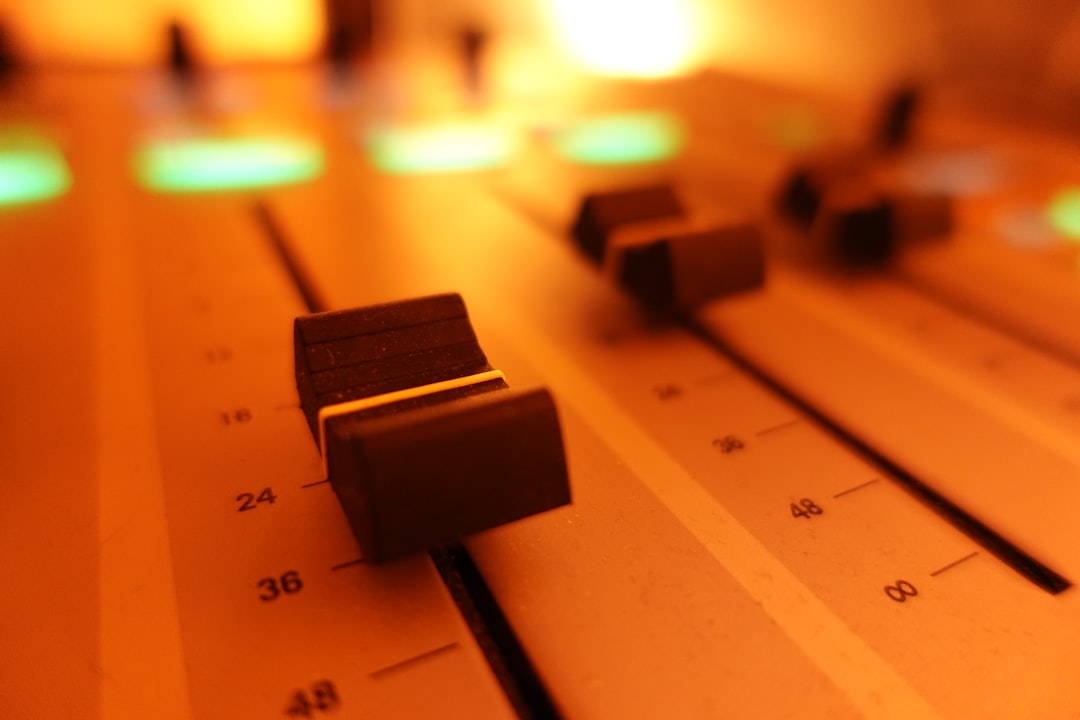
VirtualDJ is not a general streaming studio. It is a DJ performance tool first. That matters. If your show depends on beat matching, cue points, stems, loops, music videos, or controller support, VirtualDJ is far better than trying to force OBS to act like DJ software.
VirtualDJ supports audio and video mixing, plus real-time stem separation in supported workflows. Its hardware support is also broad, with many DJ controllers listed by the company [source: VirtualDJ]. That helps when you walk into a venue and do not want your controller to become an expensive paperweight.
For streaming, the usual setup is simple. Mix in VirtualDJ. Send the master audio to Voicemeeter or a physical mixer. Bring that sound into OBS. Add cameras and graphics in OBS. This gives each tool a clear job.
Best for:
- DJs streaming live sets
- Music video mixing
- Controller-based performance
- Shows where timing and cueing matter
3. Voicemeeter: best audio routing problem solver
Voicemeeter is the tool you use when Windows audio refuses to behave. It can route system sound, microphones, browser audio, Discord, music apps, and hardware inputs into separate virtual channels. Then it can send a clean mix into OBS.
It comes in several versions, including Voicemeeter, Banana, and Potato. Most live producers should start with Voicemeeter Banana. It offers enough virtual inputs and outputs for typical streaming work without feeling too crowded.
Honestly, it feels like the first setup always takes longer than it should. You may lose 10 to 15 minutes selecting the right input in three different menus. Once saved, though, the routing is stable and repeatable.
Best for:
- Separating mic, music, chat, and desktop sound
- Sending custom monitor mixes to headphones
- Fixing audio conflicts between apps
- Advanced OBS audio workflows
4. vMix: best paid option for serious live production
vMix is built for producers who need more than basic streaming. It supports multi-camera switching, instant replay, virtual sets, NDI inputs, graphics, recording, and streaming. It feels closer to a broadcast control room than a creator app.
The downside is cost and learning time. vMix is Windows-only, and the editions vary by resolution and feature set. If you need 4K support or many inputs, check the license level before buying [source: vMix].
vMix makes sense for paid events, sports, conferences, and churches with trained volunteers. For a solo DJ or podcaster, it is often more than needed.
5. Wirecast: best for polished event streaming
Wirecast is another paid production tool. It is used for professional webcasts, education, interviews, and business events. It supports multiple cameras, titles, guests, and streaming outputs. The interface is more polished than OBS, but it comes at a higher price.
Wirecast is a good fit when reliability, support, and a clean interface matter more than saving money. It is less attractive if you enjoy plug-ins and community-made tools. OBS wins there.
Which workflow should you choose?
- Solo streamer: OBS Studio only, plus a good USB mic.
- DJ livestream: VirtualDJ for mixing, Voicemeeter for routing, OBS for cameras and streaming.
- Podcast with guests: OBS plus Voicemeeter, especially if using Discord, Zoom, or browser audio.
- Conference or church: vMix or Wirecast if budget allows; OBS if the team is technical.
- Music video show: VirtualDJ and OBS, with a capture card or second display if needed.
Final recommendation
Start with OBS Studio. Add Voicemeeter only when audio routing becomes painful. Add VirtualDJ if the content is music-led. Move to vMix or Wirecast when the show has paying clients, multiple operators, or no room for amateur mistakes.
The smartest setup is not the biggest one. It is the one you can rebuild quickly at 7:55 p.m. when the stream starts at 8:00.