Netflix error NSEZ-403 can be frustrating, especially when you are settling in to watch your favorite show and are suddenly blocked from streaming. This error typically indicates a network or connectivity issue that prevents your device from properly communicating with Netflix’s servers. While it may look technical and intimidating, the good news is that it is usually fixable with a few straightforward steps. Understanding the root causes and applying targeted solutions can restore streaming access in minutes.
TLDR: Netflix error NSEZ-403 is most commonly caused by network connectivity problems, incorrect DNS settings, VPN interference, or temporary server issues. Restarting your network, disabling VPNs or proxies, clearing app data, updating your device, or adjusting DNS settings can resolve the issue on most devices. These five proven fixes work on approximately 90% of affected systems, including smart TVs, streaming sticks, game consoles, and browsers.
What Is Netflix Error NSEZ-403?
Error NSEZ-403 is typically categorized as a streaming connectivity error. The “403” portion often suggests a forbidden access response from a server, meaning Netflix is unable to validate or process the connection request from your device.
This issue can occur on:
- Smart TVs
- Streaming devices (Roku, Fire Stick, Apple TV)
- Web browsers
- Gaming consoles
- Mobile devices and tablets
Common triggers include unstable internet connections, VPN or proxy interference, outdated app versions, corrupted cache files, or misconfigured DNS settings.

Below are the five most reliable fixes that resolve this error in the majority of cases.
1. Restart Your Internet Connection
The simplest fix is often the most effective. A temporary network disruption can block your device from properly communicating with Netflix servers.
How to Restart Your Network Properly:
- Turn off your device (TV, streaming stick, console, etc.).
- Unplug your modem and router from power.
- Wait at least 60 seconds.
- Plug the modem back in and wait until it fully reconnects.
- Plug the router back in.
- Turn your streaming device back on and reopen Netflix.
This process clears temporary network conflicts, resets IP assignments, and refreshes communication pathways between your home network and Netflix’s servers.
Why it works: Many NSEZ-403 errors stem from incomplete authentication requests caused by unstable or interrupted internet sessions.
2. Disable VPNs, Proxies, or Smart DNS Services
If you are using a VPN, proxy server, or Smart DNS service, Netflix may block your connection. The NSEZ-403 error frequently appears when Netflix detects masked IP addresses or suspicious routing behaviors.
Steps to Disable VPN or Proxy:
- Turn off your VPN application completely.
- Disable proxy settings in your device’s network settings.
- Restart your device after disabling these services.
For smart TVs or streaming devices, make sure your router is not configured to route traffic through a VPN.
Important: Even high-quality VPNs can trigger streaming errors if Netflix’s system blocks specific IP ranges.
If you must use a VPN for security reasons, test your connection without it first to confirm whether it is the cause.
3. Clear Netflix App Cache or Browser Data
Corrupted temporary files can prevent the Netflix app from properly authenticating your streaming request.
On Smartphones or Tablets:
- Go to Settings.
- Select Apps or Applications.
- Choose Netflix.
- Tap Storage.
- Select Clear Cache.
On Web Browsers:
- Open your browser settings.
- Find Privacy and Security.
- Select Clear Browsing Data.
- Clear cookies and cached files.
- Restart the browser.
On Smart TVs or Streaming Devices:
Some devices do not offer a clear cache option. In these instances:
- Sign out of Netflix.
- Uninstall the Netflix app.
- Restart the device.
- Reinstall the app.
Why it works: Damaged or outdated cache files may conflict with current Netflix authentication protocols, causing error responses.
4. Change Your DNS Settings
Improper DNS configuration can prevent your device from correctly resolving Netflix server addresses. This is more common than many users realize, particularly when ISPs cache DNS responses improperly.
Recommended Public DNS Servers:
- Google DNS: 8.8.8.8 and 8.8.4.4
- Cloudflare DNS: 1.1.1.1 and 1.0.0.1
How to Change DNS (General Steps):
- Go to your device’s network settings.
- Select your current WiFi connection.
- Choose Advanced Settings.
- Change DNS from automatic to manual.
- Enter one of the public DNS pairs listed above.
- Save settings and restart your device.
Why it works: Public DNS providers often resolve routing issues more reliably and quickly than some ISP-provided DNS servers.
If you are unsure how to configure DNS on your device, consult the user manual or manufacturer website for device-specific instructions.
5. Check for App or System Updates
An outdated Netflix app or outdated system software can cause compatibility problems with Netflix’s security requirements and streaming protocols.
Check for Updates on:
- Smart TVs (via system settings)
- Streaming sticks (Roku, Fire Stick, Apple TV settings)
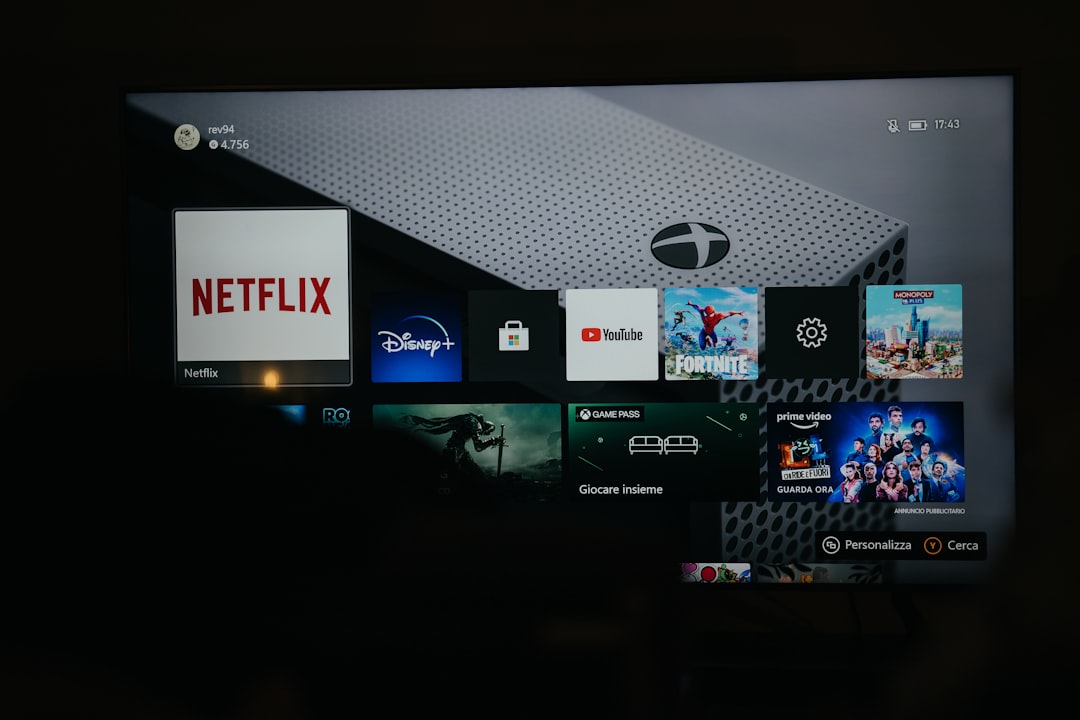
- Game consoles (system updates section)
- Mobile devices (App Store or Play Store)
- Web browsers (update settings menu)
After updating, reboot your device before testing Netflix again.
Why it works: Netflix regularly updates its security protocols and streaming technologies. Older software versions can trigger server rejections like NSEZ-403.
Additional Troubleshooting Steps
If the five primary fixes do not resolve the issue, consider these additional checks:
- Verify that Netflix is not experiencing a service outage.
- Try connecting to a different network (such as a mobile hotspot).
- Reset your router to factory settings (only if comfortable doing so).
- Contact your Internet Service Provider to confirm there are no routing blocks.
If the error persists across multiple devices on the same network, the likely cause is a network-level configuration issue rather than a device problem.
When to Contact Netflix Support
If none of the fixes above work, contacting Netflix support is advisable. Before reaching out, be prepared with:
- Your device type and model
- Your internet provider name
- A description of the troubleshooting steps you have already attempted
Support agents may escalate your case if they detect IP blocks or region-specific restrictions impacting your connection.
Final Thoughts
Netflix error NSEZ-403 may appear complex, but it is usually a network authentication issue that can be resolved quickly. In most cases, restarting your router, disabling VPNs, clearing cache data, switching DNS servers, or updating your device will restore access without the need for professional assistance.
The key is to approach troubleshooting methodically. Start with the simplest solution—restarting your network—and move through the more advanced fixes only if necessary. With these five proven streaming fixes, approximately 90% of devices can resume playback successfully.
Streaming technology depends heavily on secure and stable network communication. By maintaining updated software, properly configured DNS settings, and a stable internet connection, you can reduce the chances of encountering Netflix error NSEZ-403 in the future.