The rise of gaming subscriptions has radically changed how families game together. One of the most popular services available today is Xbox Game Pass Ultimate, offering access to hundreds of games, cloud gaming, and more. But if you’re looking to share the benefits of this service with your family, you might be wondering — how do you actually add family members to your subscription?
TLDR:
While Xbox Game Pass Ultimate doesn’t officially support family sharing like some other platforms, there are still a few smart and safe workarounds. These involve using the Xbox Home Console feature and account management through Microsoft’s Family Group. With the right setup, you can share your Game Pass Ultimate subscription benefits—including Game Pass, EA Play, and online multiplayer—with others in your household. Keep reading for a complete guide on how to do it effectively.
Understanding Xbox Game Pass Ultimate
Before diving into the sharing process, it’s important to understand what comes with an Xbox Game Pass Ultimate subscription. The plan bundles together several Microsoft gaming services, including:
- Xbox Game Pass Console – Access to a rotating catalog of games on your Xbox console.
- Xbox Game Pass PC – A library of PC games downloadable through the Xbox app.
- Cloud Gaming (Beta) – Play select games via the cloud on phones, tablets, and browsers.
- Xbox Live Gold – Multiplayer access, discounts, and monthly free games.
- EA Play – A range of EA titles available to download or play through the cloud.
Game Pass Ultimate is designed as a single-user subscription, but Microsoft allows some indirect methods to share its features—especially within a single household.
Option 1: Using Xbox Home Console
Xbox has a feature called Home Xbox that allows you to share your Game Pass Ultimate benefits with other users on your console. Here’s how it works:
Step-by-Step Guide:
- Sign in to the Xbox console using the account with the Game Pass Ultimate subscription.
- Press the Xbox button on your controller to open the guide.
- Navigate to Profile & system → Settings → General → Personalization.
- Select My home Xbox.
- Choose Make this my home Xbox.
Once this is set:
- Anyone who uses this home Xbox can play your Game Pass games, access Xbox Live Gold multiplayer, and take advantage of other Ultimate features—even if they log into their own profile.
- This is ideal for households with a shared console.
Note: You’re allowed to change your Home Xbox only five times per year, so use this option carefully.

Option 2: Creating a Microsoft Family Group
Microsoft offers what it calls a Family Group—a way to manage your family’s digital life, which includes screen time, content filters, and activity reporting. But for Game Pass, the main benefit is account and game management across devices.
How to Set Up a Family Group:
- Go to account.microsoft.com/family.
- Create a family group and add family members by email or phone invitation.
- You can add both children and other adults, giving you control over content restrictions and permissions.
While this doesn’t directly share the Game Pass subscription on different consoles, it helps manage game downloads, Xbox settings, and online safety when multiple people use your main console or Game Pass account through the Home Xbox method.
Option 3: Sign In on Multiple Devices
You can also sign in to a second console or PC with your Game Pass Ultimate account. Here’s how you might effectively use this strategy:
- Designate your primary console as your Home Xbox for your family to use together.
- Use your Game Pass Ultimate profile to sign in on your personal device like a second Xbox or gaming PC.
By doing this, the other members of your household still have access to all your Game Pass perks on the main console, while you can continue gaming elsewhere.
Things to Keep in Mind
Though these are great workarounds, it’s important to remember:
- Cloud Gaming is tied directly to the primary Game Pass Ultimate owner’s account. Others can’t use cloud gaming unless they are logged in as the subscription holder.
- PC sharing is trickier, since the Game Pass library is usually available only when you’re signed in. Some games may be shared with others, but access is much more limited.
- VPN and region-based hacks are not recommended—these can violate Microsoft’s terms of service and may result in suspension of your account.
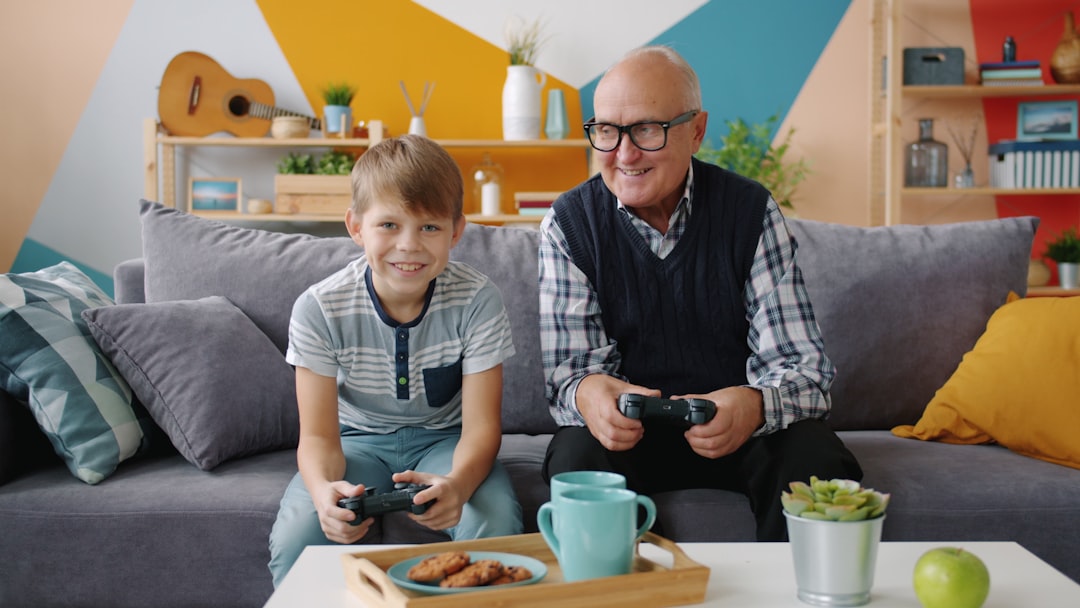
Possibility of a Family Plan: What’s Coming?
Any article on sharing Game Pass would be incomplete without mentioning a major upcoming change on the horizon: Microsoft is testing a Family Plan version of Game Pass.
In 2022, Microsoft began piloting a Game Pass Friends & Family plan in select regions like Ireland and Colombia. This plan allows up to five users to share the subscription benefits, even if they don’t live in the same household.
While this plan has not launched globally yet, it shows strong evidence that Microsoft recognizes the demand for a shared Game Pass experience. If released worldwide, the Family Plan would be the simplest and most beneficial way to share Game Pass Ultimate officially.
Tips for Smooth Sharing Experience
Want to ensure everything works seamlessly? Here are a few pro tips:
- Communicate logins and usage times if devices are shared or signed into the same account.
- Use parental controls via Microsoft Family to restrict game content and online purchases.
- Keep track of game save data—each user will have their own profile and progress, even with shared access to games.
Frequently Asked Questions
Q: Can I share Game Pass Ultimate with someone outside my home?
A: Officially, no. You can share via the Home Xbox feature for others on the same console, but playing on separate devices in other homes typically requires additional subscriptions—unless you’re part of a future Family Plan.
Q: Will cloud saves work for different users sharing the same Game Pass library?
A: Yes! Each user’s save files and data are tied to their personal Xbox profile, not the Game Pass account itself. This means multiple users can play the same game at different paces.
Q: Is there a risk of account suspension for sharing?
A: Using the approved Home Xbox and Microsoft Family Group methods is perfectly safe. Account bans typically result from more extreme abuses, like region switching or selling sub-accounts.
Conclusion
Though Xbox Game Pass Ultimate wasn’t built with family sharing in mind, Microsoft’s features like the Home Xbox and Family Group offer creative and effective ways to extend its value across your household. Until an official Family Plan becomes widely available, these workarounds allow families to enjoy an expansive library of games together—and get the most out of every Ultimate subscription.
Gaming is better together—especially when you can share incredible experiences, co-op titles, or even just friendly competition in your own living room. Whether you’re a parent, older sibling, or even a roommate, now you know how to make Xbox Game Pass work for the whole crew.