Streaming on Discord should feel easy. You click Go Live, your friends join, and everyone has fun. But a low-end PC can turn that fun into a tiny slideshow with robot voices. Do not panic. With the right settings, Discord streaming can look smoother, sound cleaner, and lag a lot less.
TLDR: Use 720p at 30 FPS for most low-end PCs. Turn off extra Discord features like hardware acceleration if they cause lag. Close background apps before streaming. For better audio, use the right input device, enable noise suppression only when needed, and keep your mic volume stable.
Start With the Golden Rule
The golden rule is simple. Do not stream higher than your PC can handle.
Many people want 1080p and 60 FPS. It sounds cool. It also eats CPU power, GPU power, and internet speed like a hungry dragon. If your PC is older, that dragon wins.
Instead, aim for balance. A clear, stable stream is better than a sharp stream that freezes every five seconds.
For most low-end PCs, start here:
- Resolution: 720p
- Frame rate: 30 FPS
- Stream area: Share only the game or app, not the whole screen
- Background apps: Close anything you do not need
This setup is not flashy. But it works. Your viewers will thank you. Your PC will also stop screaming.

Best Discord Video Settings for Low-End PCs
Discord keeps stream settings simple. That is good. It means you only need to tweak a few things.
When you start a stream, Discord may let you pick quality options. If you do not have Discord Nitro, your choices may be limited. That is fine. You can still improve performance.
Use 720p Instead of 1080p
720p is the sweet spot. It looks decent. It uses less power. It also needs less upload speed.
1080p can look sharper. But on a low-end PC, it may cause stutter. Your game may lag. Your stream may lag. Your friends may see frozen frames and hear you say, “Wait, am I back?”
Use 720p first. If everything feels smooth, you can test higher settings later.
Use 30 FPS Instead of 60 FPS
30 FPS is much easier to stream. It cuts the workload almost in half compared to 60 FPS.
For games like Minecraft, Stardew Valley, Roblox, card games, strategy games, or browser games, 30 FPS is usually enough.
Use 60 FPS only if your PC and internet can handle it. Fast shooters and racing games look better at 60 FPS. But smooth 30 FPS still beats broken 60 FPS every time.
Share the App, Not the Whole Screen
Discord lets you share your full screen or a single app. On a low-end PC, choose the app when possible.
Sharing your entire screen can add extra work. It may also capture random popups. Nobody needs to see your 47 open tabs. Especially the one named “why is my pc loud.”
Pick the game or program directly. This helps Discord focus on one thing.
Turn Hardware Acceleration On or Off
This setting can be weird. For some PCs, hardware acceleration helps. For others, it makes Discord lag like it is walking through peanut butter.
Hardware acceleration lets Discord use your GPU for some tasks. If your GPU is decent, this may help. If your GPU is weak, old, or already busy with a game, it may hurt.
To test it:
- Open User Settings in Discord.
- Go to Advanced.
- Find Hardware Acceleration.
- Turn it off.
- Restart Discord.
- Try streaming again.
If performance gets better, keep it off. If performance gets worse, turn it back on. There is no magic answer. Your PC gets to vote.
Close Background Apps Before Streaming
This is boring advice. It is also very powerful.
Low-end PCs do not have much spare power. Every background app is like a tiny goblin stealing resources.
Before you stream, close these if you do not need them:
- Chrome or other browsers with many tabs
- Game launchers
- Updaters
- Music apps
- Recording software
- Cloud sync apps
- Extra overlays
Browsers are a big one. A few tabs can use a lot of RAM. If your PC has 4 GB or 8 GB of RAM, this matters a lot.
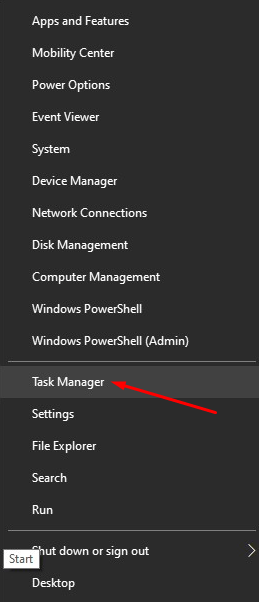
You can also open Task Manager on Windows. Press Ctrl + Shift + Esc. Look at CPU, memory, and GPU use. If one app is eating everything, close it.
Best Internet Settings for Less Lag
Your PC matters. Your internet matters too. Discord streaming needs upload speed. Download speed is not the main hero here.
If your upload speed is low, your stream may look blurry. It may freeze. Audio may cut out. Everyone gets sad.
Try these steps:
- Use wired Ethernet if possible.
- If using Wi-Fi, sit closer to the router.
- Disconnect devices you are not using.
- Do not download games while streaming.
- Do not upload large files while streaming.
- Restart your router if the connection feels strange.
Ethernet is the best upgrade for stable streaming. It is not exciting. It is just a cable. But it can make your stream feel much smoother.
If you must use Wi-Fi, use the 5 GHz network if you are close to the router. Use 2.4 GHz if you are farther away. 5 GHz is faster. 2.4 GHz reaches farther.
Best Discord Audio Settings for Clear Voice
Bad video is annoying. Bad audio is worse. People can forgive a blurry stream. But if your mic sounds like a haunted toaster, they may leave.
Open Discord settings and go to Voice & Video. This is where the audio magic lives.
Pick the Correct Input Device
First, choose the correct microphone. Do not leave it on random default if Discord keeps picking the wrong device.
Set your Input Device to your actual mic. Set your Output Device to your headphones or speakers.
Then use the mic test. Talk normally. Do not whisper. Do not scream. Pretend you are explaining pizza to a confused alien.
Set Input Volume
Your input volume should be loud enough, but not crunchy. If it is too low, people cannot hear you. If it is too high, your voice clips and sounds harsh.
Start around 70% to 90%. Test it. Adjust from there.
If you are using Windows, also check your mic level there. Discord cannot fix everything if Windows has your mic set to 12%.
Use Noise Suppression Carefully
Discord has noise suppression options. These can remove fans, keyboard clicks, and background noise. Very nice.
But on a low-end PC, noise suppression can also use extra CPU. It may make your voice sound strange. It may cut off words if you speak softly.
Try these settings:
- Noise Suppression: On if your room is noisy
- Echo Cancellation: On if using speakers
- Echo Cancellation: Off if using headphones and audio sounds weird
- Automatic Gain Control: Test both ways
- Noise Reduction: Use only if needed
If your PC struggles, turn off extra audio effects one at a time. Then test again. Simple testing beats guessing.
Push to Talk or Voice Activity?
Voice Activity is easy. You talk, Discord sends your voice. Done.
Push to Talk is cleaner. You press a key to talk. This blocks random noise, snacks, coughs, and keyboard chaos.
If your room is loud, use Push to Talk. If your room is quiet, Voice Activity is fine.
For Voice Activity, adjust the sensitivity. If it is too sensitive, Discord picks up every tiny sound. If it is not sensitive enough, your first words vanish.
A good test phrase is: “Can you hear me now, tiny internet goblins?”
Reduce Game Settings Too
Discord is only half the story. Your game can also cause lag.
If your game is already using 95% of your PC, Discord has no room to work. Lower your game settings before you stream.
Try lowering:
- Texture quality
- Shadow quality
- View distance
- Anti aliasing
- Effects quality
- V sync
- Resolution
Shadows are often expensive. Effects can be expensive too. Lower them first.
You can also cap your game FPS. If your game runs at 120 FPS, your PC may waste power. Cap it at 60 FPS or even 30 FPS while streaming. This gives Discord breathing room.
Use Game Mode and Power Settings
Windows has a few settings that can help.
Turn on Game Mode in Windows settings. It can help your PC focus on the game.
Also check your power plan. If you are on a laptop, plug it in. Then use Best Performance or High Performance if available.
Laptops often slow down on battery. They do this to save power. Nice for battery life. Bad for streaming.
Also keep your laptop cool. Heat causes throttling. Throttling means your PC slows itself down. Use a flat surface. Do not stream with the laptop on a blanket. Blankets are cozy, but they are terrible airflow managers.
Update Discord and Drivers
Old software can cause strange problems. Update Discord first. It usually updates itself, but restarting it can help.
Then update your graphics driver. Use the official app or website for your GPU. This may improve performance and fix capture bugs.
Also update Windows when you can. Do not start a giant update right before movie night, though. That is how chaos begins.
Try These Quick Setting Combos
If you want fast answers, use these presets.
Very Weak PC
- Stream: 480p or 720p
- FPS: 15 or 30
- Hardware Acceleration: Test off
- Game graphics: Low
- Background apps: Closed
Basic Low-End PC
- Stream: 720p
- FPS: 30
- Hardware Acceleration: Test both
- Game graphics: Low or medium
- Audio effects: Only what you need
Decent Budget PC
- Stream: 720p or 1080p
- FPS: 30 or 60
- Hardware Acceleration: Usually on, but test
- Game graphics: Medium
- Connection: Ethernet preferred
Common Problems and Easy Fixes
Stream is blurry: Lower motion in the game if possible. Use 720p. Check upload speed. Stop downloads.
Stream freezes: Lower FPS to 30. Close background apps. Lower game settings.
Game lags while streaming: Cap game FPS. Turn down shadows. Try hardware acceleration off.
Audio cuts out: Check mic sensitivity. Disable extra noise filters. Use a wired headset if possible.
Friends hear an echo: Use headphones. Turn on echo cancellation. Lower speaker volume.
Discord feels slow: Restart Discord. Clear extra apps. Reboot the PC if it has been awake since ancient times.
Final Best Settings
Here is the simple winning setup for most low-end PCs:
- Discord stream resolution: 720p
- Discord stream FPS: 30
- Share mode: App or game only
- Hardware acceleration: Test on and off
- Internet: Ethernet if possible
- Mic input: Correct device selected
- Noise suppression: On only if needed
- Game settings: Lower shadows, effects, and view distance
- Background apps: Close them like tiny resource goblins
Discord streaming does not need to be perfect. It just needs to be smooth, clear, and fun. Start low. Test one setting at a time. Keep what works. Toss what does not.
Your low-end PC may not become a beast overnight. But with smart settings, it can still stream like a champ. Now go live, sound good, reduce lag, and enjoy the chaos with your friends.