A Dell laptop that suddenly reports “hard drive not detected” in the BIOS can feel alarming, especially when the system was working perfectly the day before. The good news is that this problem is not always caused by a dead drive. In many cases, the issue comes down to a loose connection, an incorrect boot order, a changed SATA mode, a BIOS glitch, or a failing SSD that still has a chance of being recovered.
TL;DR: If your Dell laptop does not detect the hard drive or SSD in BIOS, first check whether the drive appears under storage information, then verify boot order and SATA operation mode. Run Dell diagnostics to confirm whether the drive is failing. If the drive is not detected anywhere, reseating the SSD or replacing it may be necessary, but avoid reinstalling Windows until you know whether your data is safe.
Why the BIOS Matters
The BIOS, or UEFI firmware on newer Dell laptops, is the first layer of software that checks your hardware before Windows loads. If the internal drive is not detected there, Windows usually cannot boot because the laptop does not know that a usable storage device exists. You may see messages such as “No bootable devices found,” “Hard drive not installed,” “Primary hard disk drive not found,” or “PXE boot failed.”
These messages are related, but they do not always mean the same thing. “No bootable device” may mean the drive is detected but the boot files are missing or the boot order is wrong. “Hard drive not installed” is more serious because it often means the BIOS cannot see the drive at all.
First Step: Check Whether the Drive Is Detected in BIOS
To enter the BIOS on most Dell laptops, shut the system down completely, turn it on, and repeatedly tap F2 when the Dell logo appears. Once inside, look for sections such as System Information, Storage, Drives, SATA Information, or NVMe Information. The exact wording depends on your Dell model and BIOS version.
If you see the name of your SSD, such as a Samsung, SK hynix, Micron, Western Digital, Kioxia, or Dell-branded drive, the laptop is detecting the hardware. In that case, the problem may be boot order, Windows Boot Manager, BitLocker, corruption, or SATA mode. If the drive field says None, Not installed, or is blank, you are dealing with a connection, firmware, or hardware failure issue.
Check the Boot Order
A surprisingly common cause is an incorrect boot order. This can happen after a BIOS update, battery drain, CMOS reset, failed Windows update, or accidental settings change. In the BIOS, find the Boot Sequence or Boot Configuration menu. On systems using UEFI, Windows Boot Manager should usually be at the top of the boot list.
If the laptop is trying to boot from the network, USB, or an empty device before the internal SSD, it may show a boot error even though the drive itself is healthy. Move Windows Boot Manager above other entries, save changes, and restart. On many Dell systems, you can press F12 during startup to open the one-time boot menu and manually select the correct boot option.
- Use F2 to enter BIOS setup.
- Use F12 to open the one-time boot menu.
- Choose Windows Boot Manager if it appears.
- Disable unnecessary boot options such as network boot if they cause confusion.
SATA Mode: AHCI, RAID On, and Why It Matters
Dell laptops often include a setting called SATA Operation, even on some systems that use NVMe SSDs. The options commonly include RAID On, AHCI, and occasionally Disabled. A system that was installed under one mode may fail to boot if the mode is changed later.
For example, many Dell laptops ship with RAID On enabled by default. If someone changes it to AHCI, Windows may not load because it expects a different storage controller driver. Conversely, technicians sometimes switch from RAID On to AHCI during clean Windows installations. The important rule is simple: do not randomly change SATA mode unless you know what the previous setting was.
If the drive is detected in BIOS but Windows will not boot, check this setting. Try restoring it to the mode that was previously used. If you are unsure, note the current setting before changing anything, then test one change at a time. If Windows begins loading after switching back, you have found the cause.
Run Dell Built-In Diagnostics
Dell laptops include a very useful hardware test called ePSA or SupportAssist Pre-Boot System Assessment. To run it, restart the laptop and tap F12 at the Dell logo. Choose Diagnostics from the menu. The scan will test memory, processor, battery, fans, and storage devices.
If the diagnostics report an error code related to the hard drive or SSD, write it down exactly. Dell error codes often look like 2000-0142, 2000-0151, or similar. These codes can indicate drive failure, read errors, or missing hardware. If the drive is failing, continuing to force restarts may make data recovery harder, so stop and decide whether your files are more important than getting the laptop running immediately.
SSD Failure: Signs the Drive May Be Dead or Dying
SSDs are faster and more durable than old mechanical hard drives, but they can still fail. Unlike traditional hard drives, which may click, grind, or become slow before dying, SSDs sometimes fail suddenly. One day the laptop boots normally; the next day the BIOS cannot detect the SSD at all.
Common signs of SSD failure include random blue screens, freezing during startup, disappearing partitions, extremely slow file access, failed Windows updates, or the laptop entering automatic repair repeatedly. If the SSD appears and disappears intermittently in BIOS, that is a strong warning sign. It may be caused by a bad SSD, a failing motherboard slot, overheating, or a poor connection.
If your data matters, avoid formatting, reinstalling Windows, or repeatedly running repair tools. Instead, consider removing the SSD and connecting it to another computer through a compatible USB enclosure or adapter. For M.2 NVMe drives, you need an NVMe enclosure; for M.2 SATA drives, you need a SATA-compatible enclosure. They look similar but are not always interchangeable.
Reseat the Drive If the BIOS Shows Nothing
If the BIOS does not detect the drive at all, the next practical step is to reseat it. This means physically removing and reinstalling the SSD or hard drive so the connector makes proper contact. Before opening the laptop, shut it down, unplug the charger, and if possible, disconnect the internal battery after removing the bottom cover. If your model has warranty coverage, check Dell’s service terms first.
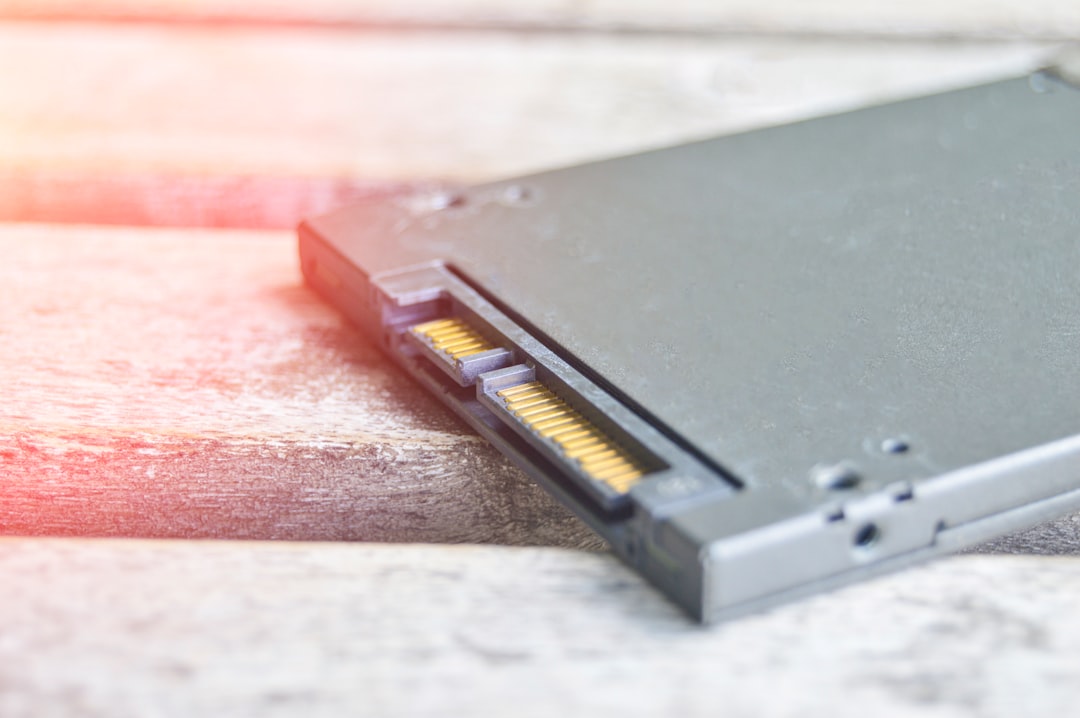
Many newer Dell laptops use a small M.2 SSD held by a single screw. Older models may use a 2.5-inch SATA drive connected by a cable or caddy. A loose screw, damaged cable, or partially unseated drive can prevent detection. Remove the drive carefully, inspect the connector, reinstall it firmly, and then check BIOS again.
- Use the correct screwdriver to avoid stripping screws.
- Disconnect power before touching internal components.
- Avoid touching gold contacts on the SSD.
- Check for bent pins, damaged cables, or missing mounting screws.
- If unsure, ask a technician rather than forcing the part.
BIOS Update or BIOS Reset
Sometimes the issue is firmware-related rather than drive-related. A corrupted setting, buggy BIOS version, or failed update can cause detection problems. In BIOS setup, look for an option such as Load Defaults, Restore Settings, or BIOS Defaults. Apply the default settings, save, and restart. After resetting, verify boot order and SATA operation again because defaults may change those values.
If the laptop still works from a USB boot environment or the drive is intermittently detected, updating the BIOS from Dell’s official support page may help. However, do not update BIOS on a system that randomly powers off or has an unstable battery. A failed BIOS update can create a bigger problem than the original storage issue.
What If the Drive Is Detected but Windows Still Will Not Boot?
If BIOS sees the drive and diagnostics pass, the issue may be with Windows boot files. Use the F12 boot menu and check whether Windows Boot Manager appears. If it does, select it. If Windows still fails, you may need Windows Recovery Environment tools such as Startup Repair, System Restore, or command-line boot repair.
Booting from a Windows installation USB can also help. Choose Repair your computer instead of installing Windows. From there, you can access recovery options. Be careful with commands that rebuild partitions or modify boot records if the system uses BitLocker encryption. If BitLocker is enabled, you may need the recovery key from your Microsoft account, workplace, or school administrator.
When Replacement Is the Best Fix
If the SSD is not detected in BIOS, fails Dell diagnostics, disappears in another computer, or produces repeated storage errors, replacement is usually the most reliable fix. Fortunately, SSD replacement is often straightforward and can dramatically improve performance. Make sure you buy the correct type: M.2 NVMe, M.2 SATA, or 2.5-inch SATA, depending on your Dell model.
After installing a new drive, you can reinstall Windows using Dell recovery media or a standard Microsoft Windows USB installer. You may also need Intel Rapid Storage Technology drivers during installation if the laptop is set to RAID On. Alternatively, some users switch to AHCI before installing Windows, but that decision should be made before installation and kept consistent afterward.
Protecting Your Data Next Time
A drive detection failure is a reminder that storage devices are consumable parts, not permanent vaults. Use cloud backups, an external drive, or Windows File History to keep important files safe. If you use your Dell laptop for work, school, design, finance, or personal photo storage, a backup can turn a disaster into a minor inconvenience.
Also pay attention to early warning signs. Random freezes, failed updates, disappearing files, or repeated automatic repairs should not be ignored. Checking SSD health with reputable tools while the system still boots can give you time to clone the drive before it fails completely.
Final Thoughts
When a Dell laptop does not detect its hard drive or SSD in BIOS, start with the simple checks before assuming the worst. Confirm whether the drive appears in BIOS, verify the boot order, review SATA mode, and run Dell diagnostics. If the drive is still invisible, reseating it may help, but a failed SSD is a real possibility.
The key is to move carefully. Changing random BIOS settings, reinstalling Windows too soon, or repeatedly forcing repairs can make the situation worse, especially if valuable data is involved. With a methodical approach, you can usually determine whether the fix is a simple setting, a boot configuration issue, or a storage device that needs replacement.