Start with Alacritty if you want speed, then add Starship and Zellij if you want a nicer daily workflow. Alacritty is a GPU-powered terminal emulator, which means it uses your graphics card to draw text fast [source: Alacritty]. That sounds nerdy. It is. But it also means your terminal can feel sharper when logs are flying by.
TLDR: Pick Alacritty for a fast, clean terminal. Pick WezTerm if you want tabs, panes, and deep config in one app. Add Starship to make your prompt useful, such as showing Git branch, Node version, and error status in one line. If a developer saves just 5 minutes a day by jumping between projects faster, that is over 20 hours a year.
Why customize your command line?
Your terminal is not just a black box with scary green text. It is your cockpit. You run tests there. You start servers there. You fix broken Git branches there while muttering at your screen.
A plain terminal works. Sure. So does a folding chair. But if you sit in it eight hours a day, you may want something better.
Good command-line tools can help you:
- Move faster between projects.
- Read errors with less eye strain.
- Split screens without messy windows.
- See Git status before you break things.
- Make work feel less dull. That counts.

1. Alacritty: fast, simple, and a little strict
Alacritty is a terminal emulator for people who like speed and clean design. It does not try to be a full workspace. It does one job: show your shell fast.
It uses a config file, usually in TOML. You can set fonts, colors, padding, window size, opacity, and key bindings. It feels light. It opens fast. It does not throw a giant settings screen at you.
Best for: Developers who want a fast terminal and do not need built-in tabs.
Annoying bit: Alacritty does not include tabs or splits by default. Honestly, that feels rude the first time you notice it. You will need a multiplexer like Zellij or tmux if you want pane magic.
2. WezTerm: the power user’s candy box
WezTerm is like Alacritty after drinking two coffees and reading a Lua book. It is fast. It is configurable. It also has built-in tabs, panes, SSH support, and a rich config system.
You can script the layout. You can set smart key bindings. You can open a project and have panes appear exactly how you like them. One pane for the server. One for tests. One for Git. One for yelling into the void.
Best for: Developers who want one terminal app to manage a full workspace.
Watch out: The config is powerful, but it can get deep fast. Expect to waste time on one perfect key binding that saves you 0.7 seconds. You will still feel proud.
3. iTerm2: the friendly macOS upgrade
If you use a Mac, iTerm2 is one of the easiest upgrades from the default Terminal app. It has tabs, split panes, profiles, search, hotkey windows, and nice color support.
The hotkey window is the star. Press a shortcut, and your terminal drops down. Run a command. Press again, and it hides. It feels like a secret drawer for your shell.
Best for: Mac users who want more features without building a whole setup from scratch.
Annoying bit: The settings panel has a lot going on. You may click through five sections just to change one small behavior. Not fun. Still useful.
4. Starship: a smarter prompt without the clutter
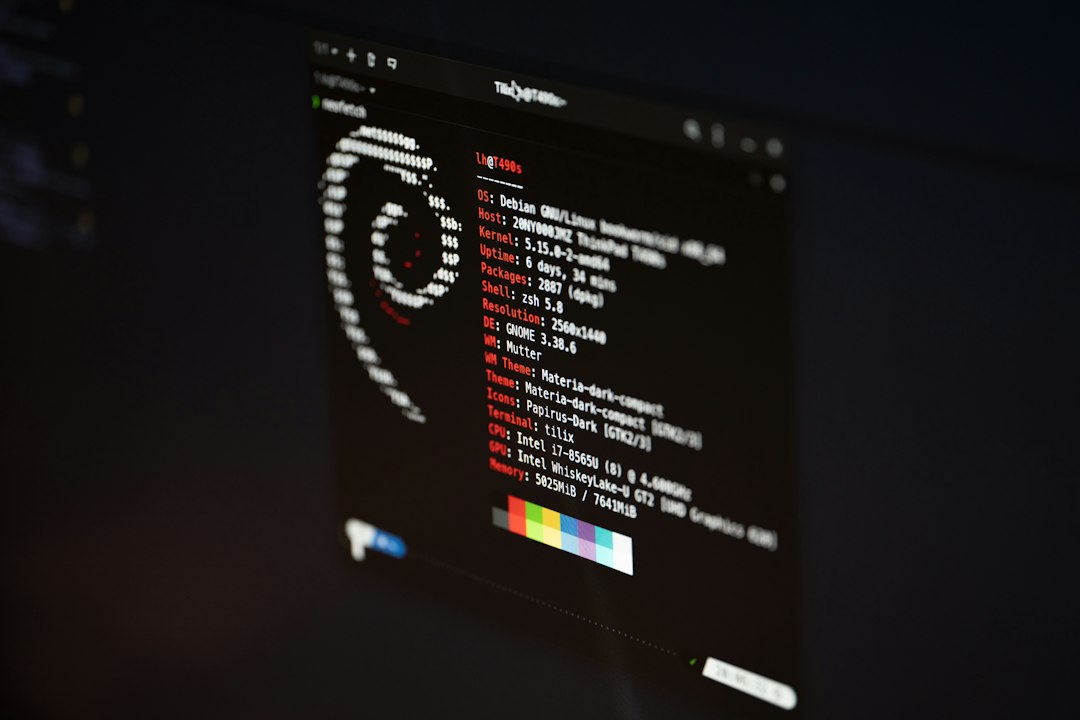
Starship is not a terminal emulator. It is a prompt. That means it changes the line where you type commands.
A good prompt tells you useful things before you hit Enter. Starship can show your current folder, Git branch, package version, cloud profile, command status, and more. It works with Bash, Zsh, Fish, PowerShell, and other shells.
Here is a simple example. You enter a project folder. Your prompt shows:
- Git branch: feature login
- Node version: 20
- Package status: dirty files
- Last command: failed
That little warning can save you from committing junk. It can also stop the classic “why is this using the wrong Node version?” headache.
Best for: Anyone who works across several projects, languages, or repos.
5. Zellij: terminal panes without the pain
Zellij is a terminal workspace tool. Think of it as a pane manager. It lets you split your terminal into sections, resize them, create tabs, and keep sessions alive.
It is great with Alacritty. Alacritty gives you speed. Zellij gives you structure. Together, they feel clean and sharp.
A normal layout might be:
- Top left: editor or file watcher.
- Top right: dev server.
- Bottom left: test runner.
- Bottom right: Git commands.
Best for: Developers who like organized screens and hate hunting through ten terminal windows.
Image not found in postmetaQuick picks for different developers
- New developer: Use iTerm2 on Mac, Windows Terminal on Windows, or the default terminal on Linux. Add Starship.
- Speed fan: Use Alacritty plus Starship.
- Pane lover: Use WezTerm, or Alacritty with Zellij.
- Remote worker: Try WezTerm or Zellij for clean session control.
- Minimalist: Alacritty, a good font, and a calm color theme.
A simple setup that works
If you want a strong setup without drama, try this:
- Terminal: Alacritty
- Prompt: Starship
- Panes: Zellij
- Font: JetBrains Mono or Fira Code
- Theme: Catppuccin, Tokyo Night, or Gruvbox
This setup is fast, readable, and not too fancy. It gives you the good stuff without turning your terminal into a spaceship dashboard.
The best command-line setup is the one you stop thinking about. It should open fast. It should show the right clues. It should stay out of your way. Start small. Change one thing. Then keep what makes your day less annoying.