Put your most used apps where your thumb already goes. That is the fastest way to make an Android home screen feel calm, not chaotic. Android has a huge global mobile share, so millions of people are fighting the same tiny icon mess every day [source: StatCounter].
TLDR: Keep only daily apps on your first home screen. Put your top 4 or 5 apps in the bottom dock, like Phone, Messages, Chrome, and Camera. Group the rest into simple folders such as Money, Work, and Fun. If you unlock your phone 80 times a day, saving even 5 seconds each time can save over 6 minutes daily.
Start With a Quick App Cleanup
Before you arrange anything, remove the junk.
Be honest. You do not need six weather apps. You do not need that game you played once in 2022. You do not need three barcode scanners. Probably.
Open your app drawer. Scroll slowly. Ask one question for each app:
- Do I use this every week?
- Does this app still help me?
- Would I download it again today?
If the answer is no, uninstall it. If you are unsure, remove it from the home screen first. That is safer.
Honestly, it feels like Android phones collect random apps while we sleep. A coupon app here. A hotel app there. Then one day your screen looks like a junk drawer with Wi Fi.
Use the First Screen for Daily Apps Only
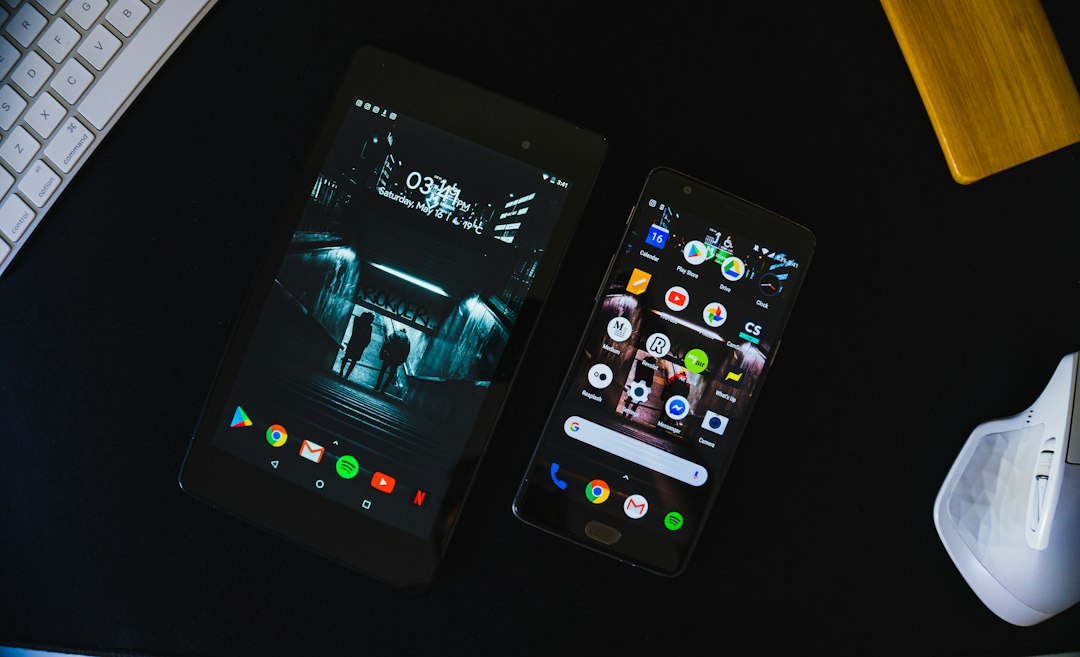
Your first home screen is prime real estate. Treat it like the kitchen counter. Only useful things get to stay there.
Good first screen apps include:
- Phone
- Messages
- Camera
- Calendar
- Maps
- Browser
- Music or podcast app
Try to keep this screen light. Around 8 to 12 apps is plenty. More than that starts to feel busy.
Leave some empty space too. Empty space is not wasted. It helps your eyes relax. It also makes the important apps easier to spot.
Build a Better Dock
The dock is the row at the bottom of your screen. It stays visible when you swipe between home screens.
That makes it powerful.
Put your true daily tools there. Not the apps you wish you used. The apps you really tap all day.
A simple dock might look like this:
- Phone for calls
- Messages for chats
- Chrome or your browser
- Camera for quick photos
- Maps if you travel often
If you use WhatsApp more than Messages, put WhatsApp there. If you never call anyone, skip Phone. Your dock should match your life, not someone else’s perfect setup video.
Create Folders That Make Sense Fast
Folders are your best friend. Bad folder names are not.
Do not use vague names like Stuff or Other. That just moves the mess into a box. Use names that your sleepy brain understands.
Try these folder ideas:
- Money: banking, budget, PayPal, wallet apps
- Work: Slack, Teams, docs, email
- Home: smart lights, shopping, delivery apps
- Health: fitness, sleep, medication apps
- Travel: airline, hotel, maps, ride apps
- Fun: games, streaming, social apps
Keep folders small. Six to nine apps per folder is easy. Twenty apps in one folder is a tiny app swamp.
Put the most used app in each folder in the first spot. Android usually lets you drag apps around inside folders. Do that. It saves taps.
Try the One Thumb Rule
Hold your phone normally. Now notice where your thumb lands.
That area is your comfort zone. Put key apps there.
For most people, the easiest spots are near the bottom and middle of the screen. The hardest spots are usually the top corners. Do not put your most used app in thumb jail.
This matters more on big phones. Stretching for the top row gets annoying fast. It can also make you drop your phone. Nobody wants a cracked screen because the calculator was too far away.
Use Widgets, But Do Not Go Wild
Widgets can be great. They show information without opening an app.
Good widgets include:
- Weather
- Calendar
- Tasks
- Notes
- Music controls
A calendar widget can save time. A task widget can stop you from forgetting milk again. Very heroic.
But too many widgets make your screen heavy. They can also drain battery. Use one or two strong widgets instead of five noisy ones.
Place a calendar or task widget on the second screen. Keep the first screen clean. That way you still get useful info, but your main screen does not feel crowded.
Sort Social Apps With Care
Social apps are sneaky. They eat time in tiny bites.
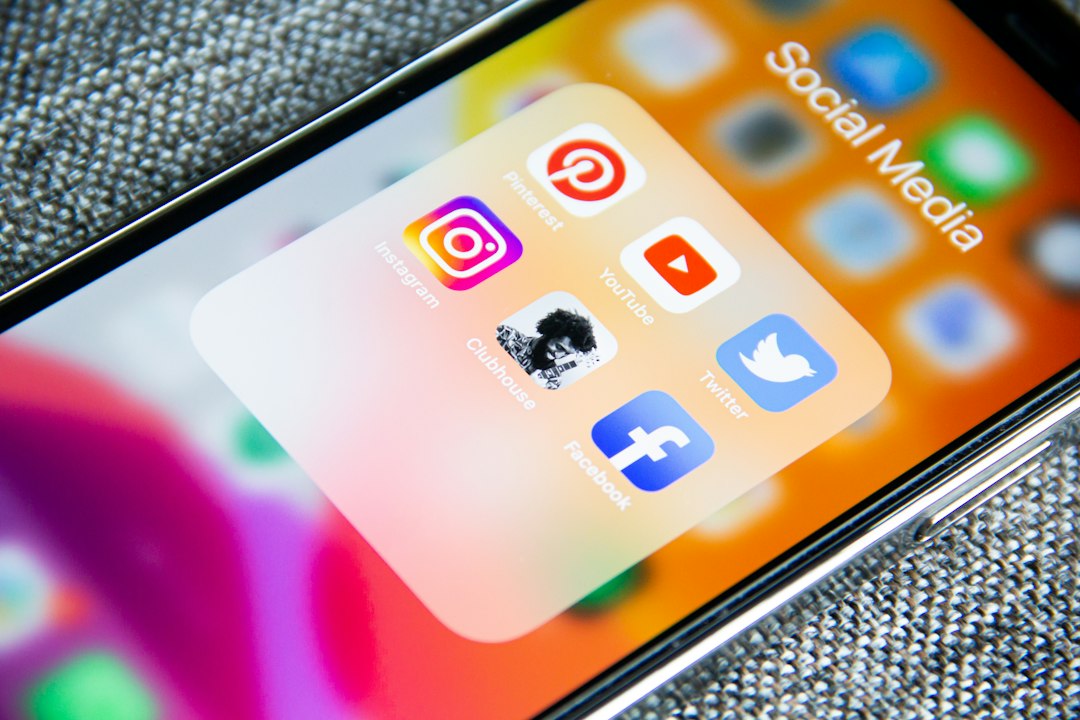
If you open social apps too often, do not place them on the first screen. Put them in a folder called Social or Break Time. Move that folder to the second screen.
This adds a bit of friction. That is good.
If Instagram takes two swipes and one folder tap, you may open it less. It sounds silly. It works.
It drives me crazy that one bored tap can turn into 18 minutes of scrolling. So make the bored tap harder.
Use the App Drawer as Storage
Your home screen does not need every app. That is what the app drawer is for.
Think of the home screen as your desk. Think of the app drawer as your closet. Some things belong in the closet.
Apps you use once a month can stay off the home screen. Examples include:
- Airline apps
- Insurance apps
- Printer apps
- Store reward apps
- Setup apps for gadgets
You can still find them with search. Swipe up. Type the first few letters. Done.
Pick a Layout Style
There is no perfect layout. There is only a layout you can use without thinking.
Here are three easy styles:
- By use: Daily apps first. Weekly apps second. Rare apps hidden.
- By category: Money, Work, Home, Health, Fun.
- By color: Green apps together. Blue apps together. Red apps together.
The color method looks pretty. It can be fun. But it may slow you down if you forget what color an app is.
The category method is best for most people. It is simple. It also grows well as you install more apps.
Make a Screen for Work and a Screen for Life
If your phone is both a work tool and a snack machine, split the zones.
Use the first screen for life. Use the second screen for work. Or flip it if work matters more during the day.
A work screen can include:
- Email widget
- Calendar widget
- Task app
- Chat app
- Cloud storage
A personal screen can include music, photos, messages, shopping, and family apps.
This helps your brain switch modes. It also keeps work apps from staring at you during dinner.
Review Your Setup Once a Month
Your phone habits change. Your layout should change too.
Set a monthly reminder called Clean phone screen. Spend five minutes on it.
Check these things:
- Which apps did you stop using?
- Which apps did you start using daily?
- Which folders feel crowded?
- Which widget is just sitting there?
Move apps based on real use. Not guilt. Not hope. Real use.
Final Setup Recipe
Here is the simple plan.
- Delete apps you do not need.
- Put 4 or 5 key apps in the dock.
- Keep only daily apps on the first screen.
- Group the rest into clear folders.
- Move distracting apps to the second screen.
- Use one or two helpful widgets.
- Clean it up once a month.
A tidy Android home screen is not about being fancy. It is about fewer taps. Less hunting. Less tiny phone rage.
Make your screen boring in the best way. Fast. Clear. Easy. Your thumb will thank you.