Lost your network security key? Do not panic. It is not hiding in a secret vault guarded by laser cats. It is usually just your Wi-Fi password. You need it when you want to connect a phone, laptop, tablet, game console, or smart toaster to your wireless network.
TLDR: Your network security key is usually the same thing as your Wi-Fi password. You can find it on your router label, in your computer settings, on your phone, or inside your router admin page. If you changed it and forgot it, you may need to reset the router. Always keep it private and store it somewhere safe.
What Is a Network Security Key?
A network security key is the password that protects your wireless network. It keeps strangers, nosy neighbors, and random people in parked cars from using your internet.
You may also see it called:
- Wi-Fi password
- Wireless password
- WPA key
- WPA2 key
- WPA3 key
- Passphrase
Different names. Same basic idea. It is the magic phrase that lets your device join the Wi-Fi party.
First Stop: Check Your Router
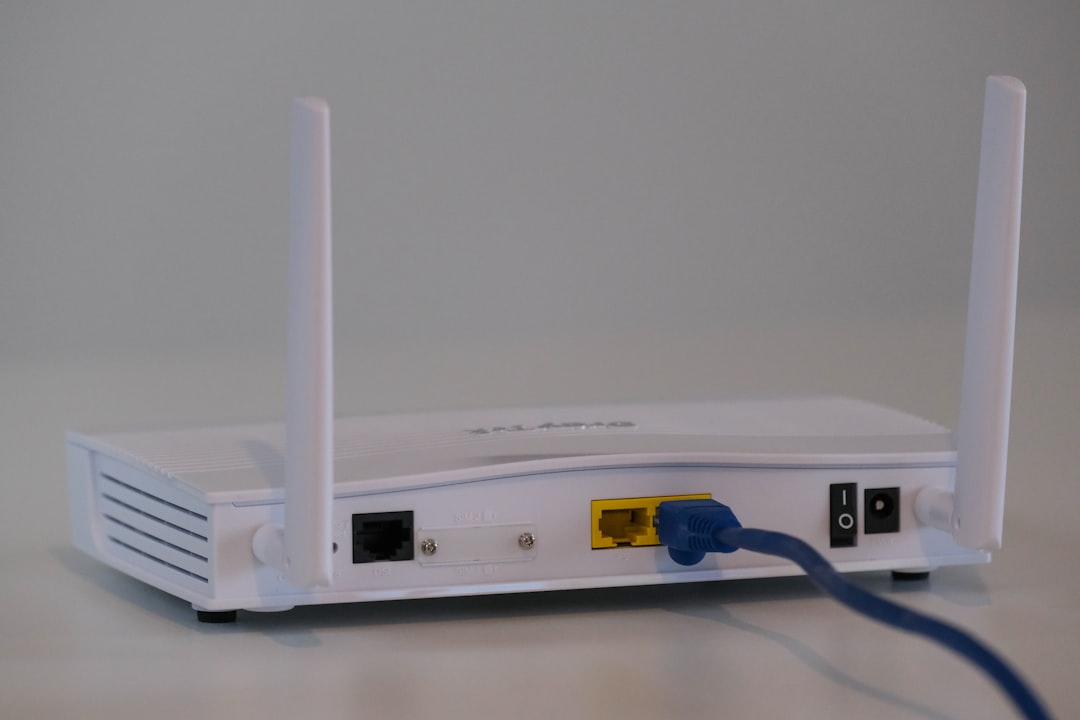
This is the easiest place to start. Many routers have the default network security key printed on a sticker. Look on the back, bottom, or side of the router.
The sticker may show:
- Network Name or SSID
- Password
- Wireless Key
- Security Key
- PIN
Be careful here. The SSID is the name of the Wi-Fi network. The security key is the password. Do not mix them up. One is the party name. The other is the bouncer’s secret code.
If you changed the Wi-Fi password in the past, the sticker may no longer be correct. In that case, keep reading. The treasure hunt continues.
Find It on a Windows Computer
If your Windows computer is already connected to the Wi-Fi, you may be able to see the saved password. This is handy when your laptop remembers the key, but your brain does not.
Here is the simple way:
- Click the Start button.
- Open Settings.
- Go to Network & Internet.
- Choose Advanced network settings.
- Open More network adapter options.
- Right-click your Wi-Fi connection.
- Choose Status.
- Click Wireless Properties.
- Go to the Security tab.
- Check the box that says Show characters.
Your network security key should appear. Be ready. It may look like a tiny dragon sneezed letters and numbers onto the screen.
Tip: You may need administrator permission to reveal the password.
Find It on a Mac
Mac computers usually save Wi-Fi passwords in Keychain Access. That name sounds fancy. It is basically a password locker.
Try this:
- Open Launchpad.
- Search for Keychain Access.
- Open it.
- Search for your Wi-Fi network name.
- Double-click the network.
- Check Show password.
- Enter your Mac username and password if asked.
Now you should see the Wi-Fi password. Write it down carefully. One wrong capital letter can ruin the whole thing. Wi-Fi passwords are very dramatic that way.

Find It on an iPhone
Newer iPhones make this much easier than before. If your iPhone is connected to the network, you can often view the password in Wi-Fi settings.
Follow these steps:
- Open Settings.
- Tap Wi-Fi.
- Tap the info icon next to your network.
- Tap Password.
- Use Face ID, Touch ID, or your passcode.
The password should appear. You can also copy it and send it to yourself. Just do not send it to your entire group chat by accident. Aunt Linda does not need your Wi-Fi key.
Find It on an Android Phone
Android phones are a little different depending on the brand. But many modern Android phones let you view or share the Wi-Fi password.
Try this general path:
- Open Settings.
- Tap Network & Internet or Connections.
- Tap Wi-Fi.
- Select your connected network.
- Tap Share or QR Code.
- Confirm with your fingerprint, face, PIN, or pattern.
You may see a QR code. Sometimes the password appears under it. If not, another phone can scan the code to join the network. It is like Wi-Fi magic, but with more squares.
Log In to Your Router Admin Page
If your devices are not showing the password, you can check the router settings. This is the control room for your home network.
First, connect to the router. You can use Wi-Fi if you are already connected. Or use an Ethernet cable if Wi-Fi is being stubborn.
Then do this:
- Open a web browser.
- Type your router’s IP address into the address bar.
- Common addresses are 192.168.1.1, 192.168.0.1, or 10.0.0.1.
- Log in with the router admin username and password.
- Look for Wireless, Wi-Fi, or Security settings.
- Find the field called Password, Passphrase, or Network Key.
The router admin password is not always the same as the Wi-Fi password. Think of the admin password as the keys to the castle. The Wi-Fi password is just the front gate code.
Check Your Internet Provider App
Many internet providers have apps. These apps often show your Wi-Fi name and password. They may also let you change them.
Open the app from your provider and look for sections like:
- Wi-Fi
- Internet
- Gateway
- Router
- Network settings
This can be the quickest method if your provider manages your router. It is like asking the person who built the maze for a map.
What If You Forgot Everything?
If you cannot find the network security key anywhere, you may need to reset the router. This should be the last option. It wipes custom settings and returns the router to factory defaults.
Most routers have a small Reset button. You may need a paperclip to press it. Hold it for about 10 to 15 seconds. The router lights may blink. Then it will restart.
After the reset, use the default Wi-Fi name and password printed on the router sticker. You may also need to set up the network again.
Warning: Resetting is not the same as restarting. Restarting is a quick nap. Resetting is memory wipe day.
How to Choose a Better Network Security Key
Once you find your key, you may want to change it. A strong Wi-Fi password is important. Do not use password123. Do not use your pet’s name plus your birthday. Hackers have seen that movie before.
A good key should be:
- At least 12 characters long
- A mix of letters, numbers, and symbols
- Easy for you to remember
- Hard for others to guess
Try a fun phrase. For example, BlueTacosDanceAt7! is stronger than fluffy2020. It is also more fun to say.
Where Should You Store It?
Do not stick your Wi-Fi password on the front door. That is generous, but bad. Store it somewhere safe.
Good options include:
- A trusted password manager
- A private note in a secure app
- A written note in a locked drawer
- Your router app, if it is protected
Also, share it carefully. If guests need Wi-Fi, consider creating a guest network. This keeps your main devices safer. Guests can browse. Your smart TV and laptop can relax.
Common Mistakes to Avoid
- Typing the wrong case: Capital letters matter.
- Confusing SSID with password: The network name is not the key.
- Using the router admin password: That may be different.
- Reading zeros as the letter O: Classic troublemaker.
- Using an old password: Someone may have changed it.
Final Thoughts
Finding your network security key is usually simple. Start with the router sticker. Then check a connected computer or phone. If needed, open the router admin page or your provider’s app.
Once you find it, protect it. Your Wi-Fi key is small, but mighty. It guards your internet, your devices, and your peace of mind. Treat it like the secret handshake to your digital clubhouse.