Fix KB5066791 by treating it as either a damaged Windows Update job or a driver block. Start with disk space, Windows Update cache, system file repair, and the manual installer. If it still fails, check the setup logs for a driver name before you keep retrying. Windows 11 needs serious free space to service updates, and Microsoft lists 64 GB as the minimum storage requirement for the OS [source: Microsoft].
TLDR: Restart the PC, free at least 25 GB, run the Windows Update troubleshooter, reset the update cache, then install KB5066791 from Microsoft Update Catalog. If the install stops around 30% to 70%, a driver may be blocking it. For example, if 4 out of 30 office laptops fail and all logs mention oem42.inf or iaStorAC.sys, update or remove that driver first. Do not keep pressing “Retry” for hours; it usually changes nothing.

1. Do the basic checks first
Before touching logs, rule out the boring stuff. It drives me crazy that Windows often shows a vague error instead of saying, “Your storage is full” or “This driver is old.” Still, these checks matter.
- Restart the PC, then try the update again.
- Free up space. Aim for at least 25 GB, more if the device is low-end.
- Unplug nonessential devices: docks, USB drives, printers, capture cards, external audio gear.
- Pause third-party antivirus for the update window, if company policy allows it.
- Check the date and time. Wrong system time can break update checks.
Then open Settings > Windows Update and try KB5066791 again. If it fails, write down the error code. Common ones include 0x800f081f, 0x80070002, 0x8007000d, and 0xc1900101. That last one often points to drivers.
2. Run the Windows Update troubleshooter
Go to Settings > System > Troubleshoot > Other troubleshooters. Run Windows Update. Let it finish, then reboot.
This tool is not magic. Sometimes it just restarts services and clears stuck jobs. Still, it takes about two minutes, and it can fix broken update state without risk.
3. Reset the Windows Update cache
If KB5066791 keeps failing, reset the update folders. Open Terminal or Command Prompt as administrator. Run these commands:
net stop wuauserv
net stop bits
net stop cryptsvc
ren C:\Windows\SoftwareDistribution SoftwareDistribution.old
ren C:\Windows\System32\catroot2 catroot2.old
net start cryptsvc
net start bits
net start wuauserv
Restart the PC. Then check for updates again. Windows will rebuild those folders. Expect the next scan to take longer than usual.
4. Repair Windows system files
Corrupt component files can block KB5066791. Run these two commands as administrator:
DISM /Online /Cleanup-Image /RestoreHealth
sfc /scannow
Let each one finish. Do not close the window at 62% or 74% because it appears stuck. DISM can sit there for several minutes with no visible movement.
If SFC says it repaired files, restart and try the update again.

5. Install KB5066791 manually
Search for KB5066791 in the Microsoft Update Catalog. Download the package that matches your Windows 11 version and system type, usually x64 for most PCs.
Close open apps. Run the .msu file. If it says the update is not applicable, check your Windows version under Settings > System > About. You may already have a newer cumulative update, or you may be on the wrong release branch.
6. Check if a driver is blocking installation
This is the key part. If the update rolls back, stalls, or throws 0xc1900101, look for driver clues.
Open these folders:
- C:\$WINDOWS.~BT\Sources\Panther
- C:\Windows\Panther
- C:\Windows\INF
Search these files for words like error, failed, driver, rollback, and inf:
- setupact.log
- setuperr.log
- setupapi.dev.log
You are looking for names such as oem31.inf, rtwlane.sys, nvlddmkm.sys, iaStorAC.sys, or btfilter.sys. These often point to Wi-Fi, Bluetooth, graphics, storage, or chipset drivers.
7. Match the INF file to the real device
If the log shows oem42.inf, find out what it is. Run this command:
pnputil /enum-driversLook for Published Name: oem42.inf. Under it, check the Provider Name, Class Name, and Driver Version. That tells you whether the problem is Intel storage, Realtek audio, NVIDIA graphics, Qualcomm Wi-Fi, or something else.
You can also open Device Manager, right-click the suspected device, then choose Properties > Driver. Compare the driver version with the vendor’s latest version.
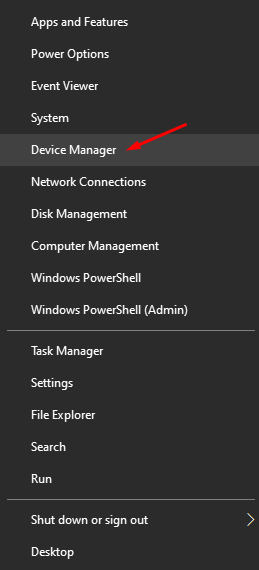
8. Update, roll back, or remove the bad driver
Once you identify the suspect driver, use the safest fix first:
- Update it from the PC maker’s support page, not a random driver site.
- Roll it back in Device Manager if the issue started after a recent driver update.
- Uninstall the device and tick Delete the driver software for this device only if you have a replacement driver ready.
- Disconnect the device if it is external, then rerun KB5066791.
Be careful with storage, chipset, and network drivers. Removing the wrong one can leave the machine unable to boot or unable to connect to the internet.
9. Use a clean boot if the blocker is unclear
A clean boot can reduce interference from vendor tools. Press Win + R, type msconfig, and open System Configuration. On the Services tab, tick Hide all Microsoft services, then click Disable all. In Task Manager, disable startup apps. Restart and try KB5066791 again.
If the update works, re-enable services in small groups. The annoying part is that this can take a few restarts, but it is better than guessing.
When to stop and escalate
Stop retrying if the same code appears three times after cache reset, DISM, SFC, and driver checks. At that point, collect setuperr.log, setupact.log, the KB number, Windows version, and the suspected driver name. Send them to your IT team or device vendor.
For business devices, test KB5066791 on a small group first. A sample of 10 to 20 machines can catch a bad storage, VPN, or Wi-Fi driver before it wastes a full workday across the office.