Working with layers is one of the most powerful aspects of modern image editing, and understanding blend modes can dramatically improve the quality of your work. Among these blend modes, Multiply stands out as one of the most useful and versatile options in Pixlr. Whether you are enhancing shadows, correcting exposure, creating graphic overlays, or building composite images, Multiply blend mode offers precise control and predictable results.
TLDR: Multiply blend mode in Pixlr darkens images by multiplying the color values of a layer with the layer beneath it. It is ideal for deepening shadows, enhancing contrast, blending textures, and removing white backgrounds. To use it effectively, apply it to a layer in the Layers panel, adjust opacity, and fine-tune with masks for precision. Mastering Multiply gives you greater control over depth, mood, and realism in your designs.
Understanding How Multiply Blend Mode Works
Before diving into technique, it’s important to understand what Multiply actually does. Blend modes determine how two layers interact visually. When you set a layer to Multiply, Pixlr mathematically multiplies the pixel values of the selected layer (the blend layer) with the pixel values of the layer below (the base layer).
The result is always darker than the original layers, except where pure white is present. White values (RGB 255,255,255) effectively become transparent under Multiply, while darker tones increase depth and intensity.
In practical terms:
- White disappears
- Light grays become subtle shading
- Dark tones intensify
- Black remains black
This predictable behavior makes Multiply incredibly useful for controlled shading and compositing tasks.
Where to Find Multiply in Pixlr
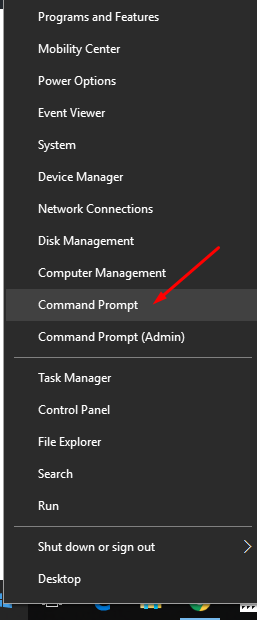
Using Multiply in Pixlr is straightforward:
- Open your project in Pixlr E or Pixlr X.
- Locate the Layers panel.
- Select the layer you want to modify.
- Click the Blend Mode dropdown (usually set to “Normal” by default).
- Choose Multiply from the list.
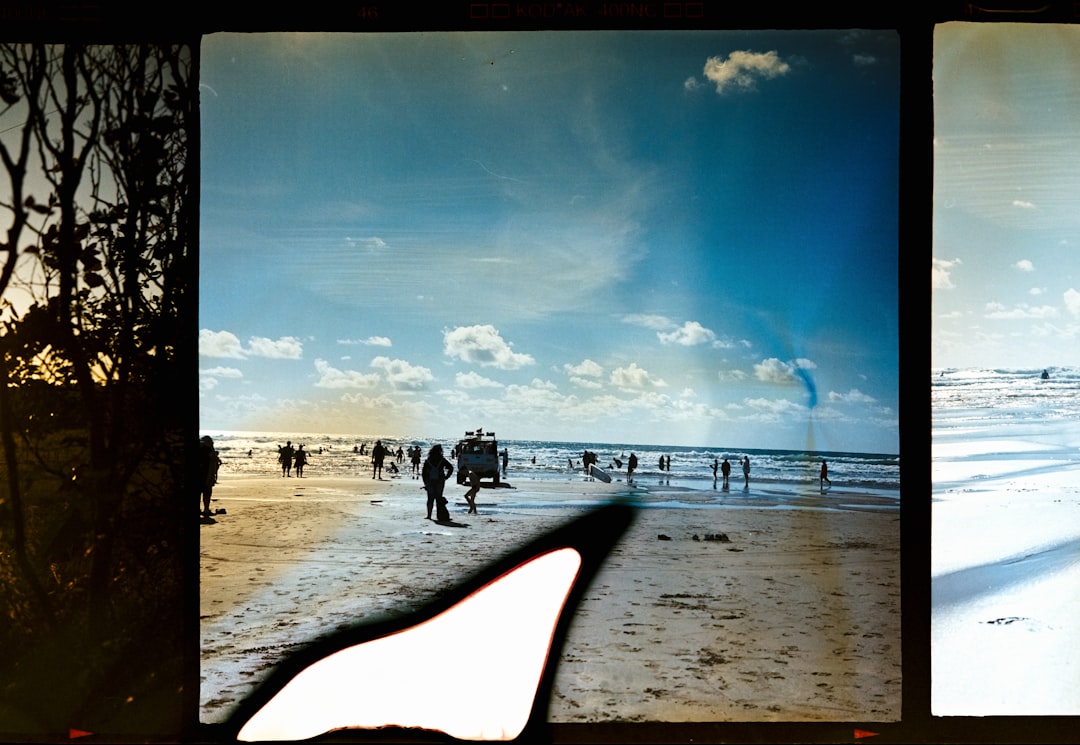
Once selected, you will immediately notice the visual change. From there, you can refine the effect using opacity and layer masks.
Practical Uses of Multiply Blend Mode
1. Enhancing Shadows and Depth
One of the most common uses of Multiply is adding realistic shadow depth. If an image appears flat or washed out, duplicating the base layer and setting the duplicate to Multiply is often an effective solution.
Step-by-step approach:
- Duplicate your image layer.
- Set the duplicate to Multiply.
- Reduce opacity to 20–60% depending on the effect.
- Add a layer mask to soften areas where shadows are too strong.
This technique increases contrast while maintaining natural tonal transitions.
2. Blending Textures Over Images
Multiply works exceptionally well when overlaying textures such as paper grain, fabric, or grunge patterns.

For example, if you place a paper texture over a portrait and change the texture layer to Multiply, the white background disappears while darker creases and fibers remain visible. This allows the texture to integrate naturally without masking out the white manually.
To refine the look:
- Adjust the opacity for subtle integration.
- Use Gaussian blur on the texture to soften harsh edges.
- Apply a layer mask to remove texture from faces or focal points.
3. Correcting Overexposed Areas
Multiply can recover visual depth in slightly overexposed images. By duplicating the base image and setting it to Multiply, highlight brightness is automatically reduced, restoring balance.
This is especially helpful in:
- Product photography
- Outdoor portraits
- Landscapes with bright skies
While this does not replace professional exposure correction, it offers a fast and effective adjustment when used subtly.
4. Creating Realistic Shadows for Objects
Graphic designers often use Multiply to simulate object shadows in composites. For instance, if placing a product onto a background:
- Create a new layer beneath the object.
- Paint a soft black shape with a low-opacity brush.
- Apply Gaussian Blur.
- Set the shadow layer to Multiply.
The result is a shadow that blends naturally with the environment, respecting underlying textures and tones.
Using Multiply with Layer Masks
Professional results depend on precision. Multiply affects the entire layer by default, but sometimes only specific areas need darkening.
This is where layer masks become essential.
Best practice workflow:
- Set your layer to Multiply.
- Add a layer mask.
- Paint with black on the mask to hide the effect.
- Use gray tones for partial transparency.
This selective approach prevents over-darkening and preserves important highlights.
Adjusting Opacity for Control
Opacity is critical when using Multiply. Because the effect can quickly become too dark, subtlety is key.
As a general guideline:
- 10–30%: Subtle tonal enhancement
- 30–60%: Noticeable depth increase
- 60–100%: Dramatic stylistic effect
Most professional edits stay below 50% opacity to maintain realism.
Multiply vs Other Darkening Blend Modes
Pixlr includes other darkening modes such as Darken, Linear Burn, and Color Burn. Understanding the distinction improves decision-making.
- Darken: Compares pixels and keeps the darker value only.
- Multiply: Produces natural, proportional darkening.
- Color Burn: Increases contrast aggressively.
- Linear Burn: Darkens with stronger contrast shifts.
Among these, Multiply is generally the most predictable and versatile. It maintains tonal relationships without introducing harsh contrast shifts.
Common Mistakes to Avoid
Even though Multiply is straightforward, misuse can degrade image quality.
1. Over-darkening the Entire Image
Setting opacity too high can cause muddy midtones and lost details.
2. Ignoring Skin Tones
In portraits, Multiply can make skin look overly saturated or unnaturally heavy.
3. Stacking Too Many Multiply Layers
Multiple stacked Multiply layers may create excessive contrast and noise buildup.
4. Forgetting Color Balance
Multiply intensifies underlying colors. If your base layer has a color cast, the effect will exaggerate it.
Advanced Techniques with Multiply
Color Grading with Multiply
Create a new layer filled with a solid color (such as deep blue or warm brown), set it to Multiply, and reduce opacity. This adds cinematic mood and tonal direction to the image.
Cool tones create a night or dramatic look, while warm browns produce vintage or sunset effects.
Illustration and Digital Painting
Digital painters frequently use Multiply for shading layers. By painting shadows on a separate Multiply layer, artists preserve the integrity of base colors while adding dimensional depth.
This is especially effective because:
- It maintains color harmony.
- It allows non-destructive workflow.
- Shadows remain adjustable at any time.
Compositing Hand-Drawn Line Art
If you scan black ink drawings with a white background, set the scan layer to Multiply. The white disappears, leaving only the ink lines visible over your digital background.
This eliminates the need for painstaking background removal and speeds up workflow significantly.
When Not to Use Multiply
Despite its versatility, Multiply is not always appropriate.
Avoid using it when:
- You need to brighten an image (use Screen instead).
- You want strong contrast boosts (Color Burn may be more suitable).
- The base image already has heavy shadows.
Using Multiply on an already dark image can compress detail and reduce clarity.
Professional Workflow Recommendations
To integrate Multiply efficiently into your editing workflow:
- Work non-destructively by duplicating layers.
- Name layers clearly (e.g., “Shadow Depth” or “Texture Multiply”).
- Use masks instead of erasing.
- Keep opacity moderate.
- Zoom in to inspect shadow detail before finalizing.
Multiply is most effective when used deliberately and sparingly.
Final Thoughts
The Multiply blend mode in Pixlr is more than just a darkening tool. When used thoughtfully, it enhances realism, adds depth, integrates textures, and supports sophisticated compositing work. Its reliability and predictability make it a foundational skill for serious designers and photographers.
Mastery comes from experimentation combined with restraint. Adjust opacity carefully, combine Multiply with masks for precision, and always evaluate the overall tonal balance of your composition. By incorporating these disciplined techniques into your workflow, you will gain greater control over mood, contrast, and dimensionality—elevating the professional quality of your images.