Activating a Spectrum modem may seem like a technical task, but it’s simpler than most people think. Whether you’ve just picked up a new modem from Spectrum or you’re setting up your own compatible device, the process is user-friendly and typically takes no more than 15–30 minutes. This step-by-step guide walks users through everything from unboxing their modem to getting their internet up and running smoothly.
TL;DR (Too Long; Didn’t Read)
Activating a Spectrum modem involves connecting the hardware, powering it up properly, and launching the Spectrum activation portal either via a browser or by calling customer support. The entire process can be completed in about 15–30 minutes. Make sure all connections are tight and that you have your account information ready. After activation, the modem may reboot automatically, finalizing your internet access.
Step-by-Step Guide to Activating a Spectrum Modem
Step 1: Gather Necessary Equipment
Before starting, make sure you have the following items:
- Your Spectrum modem (or a compatible third-party modem)
- Power adapter for the modem
- Coaxial cable to connect the modem to the wall outlet
- Ethernet cable (optional but recommended for initial setup)
- A computer or smartphone to access the activation portal
Having your Spectrum account number or installation address handy will also help speed up the activation process.
Step 2: Connect Your Modem
Once you’ve unpacked all the required components, it’s time to connect your modem:
- Attach the coaxial cable into the wall outlet and the other end into the modem’s coaxial port.
- Plug the power adapter into an electrical outlet, then connect it to the modem.
- (Optional) Connect an Ethernet cable from the modem to your computer or router.
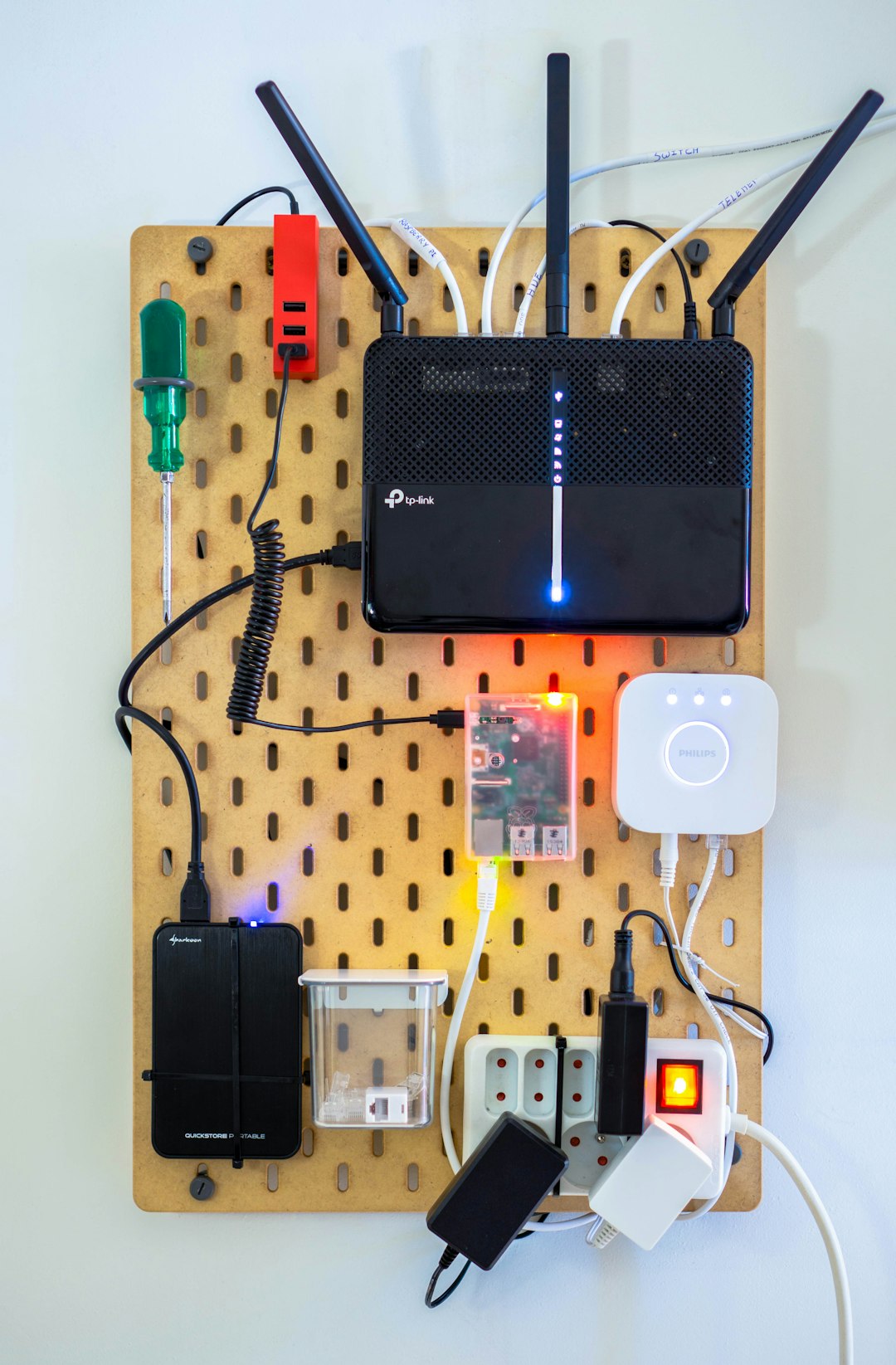
Wait for the modem to power up. The lights on the front panel will begin to flash. It may take a few minutes for all the indicator lights to stabilize.
Step 3: Wait for the Modem to Initialize
Modems generally go through a self-check and configuration process upon powering up. Please be patient as this may take 5–10 minutes.
Look for the following light indicators:
- Power: Should be solid
- Online/DS/US: Should stabilize after blinking
- Internet: Should turn solid once the modem is connected to the network
If the lights don’t stabilize after 10–15 minutes, double-check all your cable connections and try unplugging and replugging the modem.
Step 4: Launch the Spectrum Activation Portal
Using a wired or wireless connection, open your browser and navigate to:
http://spectrum.net/selfinstall
The activation portal will automatically guide you through the activation sequence. You may be asked for your Spectrum account number, service address, or MAC address (usually found on the back or bottom of the modem).
Alternatively, Spectrum customers can activate their service by calling:
1-855-854-2457
Step 5: Register the Modem
During the activation process, Spectrum will verify your modem and send necessary configuration updates to it. This process may trigger a restart of the modem. Allow the modem to reboot and stabilize, which may take another 5–10 minutes.
When the activation completes successfully, you will see a confirmation screen or be notified by the representative over the phone. At this point, you should be connected to the internet.
Step 6: Test Your Connection
Open a browser and try loading a few websites or run a speed test at:
If you’re experiencing slow speeds or connectivity issues, try the following:
- Power cycle the modem (unplug for 30 seconds, then plug it back in)
- Ensure all cables are fully and properly connected
- Try connecting directly to the modem using an Ethernet cable
- Contact Spectrum support for troubleshooting
Step 7: Set Up a Router (Optional)
If you want Wi-Fi access, you’ll need to connect a router to your modem:
- Plug one end of an Ethernet cable into the modem’s Ethernet port
- Plug the other end into the WAN or Internet port on your router
- Power on the router and wait for it to initialize
Once connected, follow your router’s setup instructions to configure your wireless network name (SSID) and password.
Modem Not Activating? Troubleshooting Tips
If the modem doesn’t complete activation, try these steps:
- Double-check cable connections: A loose coaxial or power cable can disrupt signal transmission.
- Verify modem compatibility: Third-party modems must be approved by Spectrum.
- Update firmware: In rare cases, firmware updates may be required—Spectrum usually pushes these automatically.
- Contact support: If all else fails, call Spectrum tech support or visit a local service center.
Remember, using a Spectrum-approved modem ensures seamless configuration and support availability.
Frequently Asked Questions (FAQ)
Q: Can I use my own modem with Spectrum?
A: Yes, Spectrum allows customers to use their own compatible modems. You can find a list of approved models on Spectrum’s website.
Q: Where can I find my modem’s MAC address?
A: The MAC address is typically located on the bottom or back of your modem on a sticker. It’s a 12-digit alphanumeric code often labeled as “MAC” or “MAC ID”.
Q: What should I do if the activation page doesn’t load?
A: Make sure your device is connected to the modem network and try refreshing the browser. If it still doesn’t work, try accessing the site from another device or call Spectrum customer service for assistance.
Q: Is it necessary to call Spectrum to activate my modem?
A: Not necessarily. Most users can activate their modem online using the self-installation web portal. However, you can choose to call Spectrum for manual activation if you prefer speaking to a representative.
Q: How long does the activation process take?
A: Typically, modem activation takes between 15 and 30 minutes, including connection time and device registration.
By following the above steps and consulting the FAQ when needed, users should be able to activate their Spectrum modem quickly and successfully. With the modem up and running, they’ll be ready to enjoy a stable internet connection. Always refer to the modem’s manual or Spectrum’s support page for device-specific guidance if issues persist.