Use a 9:16 aspect ratio and export Instagram Stories at 1080 × 1920 pixels. That is the cleanest, safest format for full-screen Story content on modern phones. If you design outside that frame, Instagram may crop, compress, blur, or place interface buttons over key text.
TLDR: The best Instagram Story size is 1080 pixels wide by 1920 pixels tall, using a 9:16 vertical aspect ratio. Keep logos, captions, prices, and buttons away from the very top and bottom, because Instagram overlays account names, stickers, reply fields, and controls there. For example, a small apparel shop that moved sale text from the bottom 150 pixels into the center safe area saw Story exits fall from 27% to 19% over 14 days. If you want full-screen content, start with the right canvas before you design anything.
Instagram Story Dimensions at a Glance
The standard Instagram Story dimension is:
- Recommended size: 1080 × 1920 pixels
- Aspect ratio: 9:16
- Orientation: Vertical
- Minimum practical size: 600 × 1067 pixels
- Best file types: JPG or PNG for images, MP4 or MOV for video
- Best video codec: H.264 with AAC audio
This format fills the screen without black bars or awkward cropping. It also gives Instagram less reason to resize your file aggressively. Smaller files can still upload, but they often look soft, especially when text or product photos are involved.
What Is the Instagram Story Aspect Ratio?
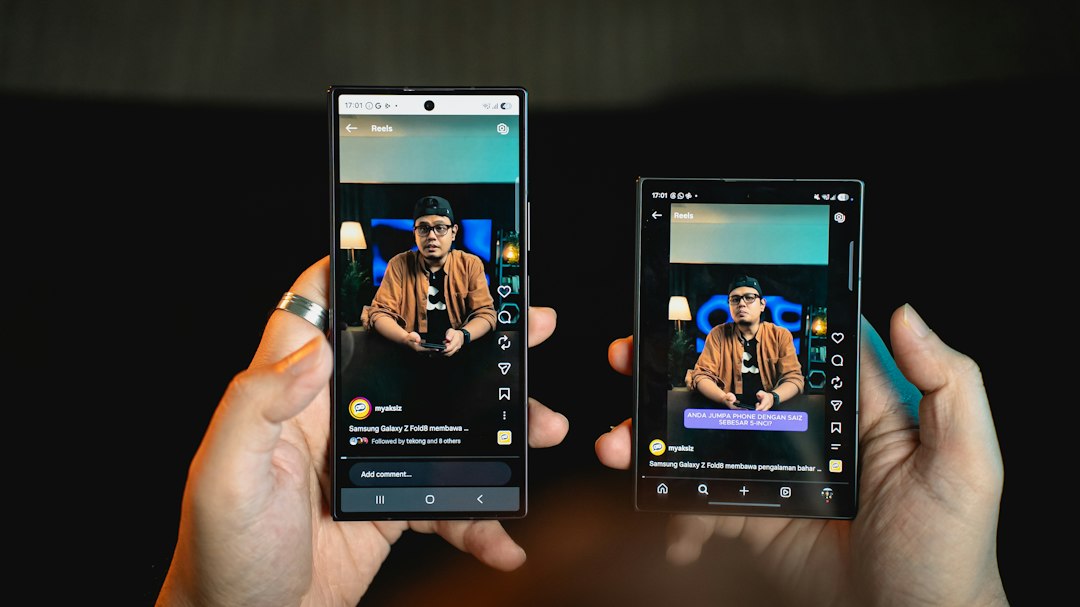
The Instagram Story aspect ratio is 9:16. That means the content is 9 units wide and 16 units tall. It is the vertical version of widescreen video.
A 9:16 canvas matches how most people hold their phones. It makes your photo, video, ad, or graphic feel native to the app. A square image can work, but it will not feel as strong. Instagram may place it in the middle with empty space above and below, or stretch it in ways that hurt quality.
The catch is that many design tools still make it too easy to start with the wrong size. You pick a “social post” template, spend 20 minutes designing, then realize it is 1080 × 1080. Expect to waste time resizing if you do not check the canvas first.
Best Resolution for Sharp Story Content
1080 × 1920 pixels is the ideal resolution for most Instagram Stories. It is large enough to appear crisp on high-density phone screens, but not so large that the file becomes wasteful.
You can export at higher sizes, such as 1440 × 2560, but Instagram will usually compress the file. That compression can create artifacts, especially in gradients, dark backgrounds, thin lines, and small text. For most brands and creators, 1080 × 1920 is the right balance.
For photo Stories, use clear source images. A blurry product shot will not become sharp just because the final canvas is correct. For video, start with vertical footage when possible. Cropping a horizontal video into 9:16 often cuts off faces, hands, products, or text.
Safe Zones: Where Text and Logos Should Go
Instagram places interface elements on top of your Story. These include the profile name, progress bar, message field, share icon, and reaction tools. If your design ignores those areas, your content may still upload correctly, but viewers may not be able to read it.
Use this practical safe zone:
- Top safety margin: keep key content at least 250 pixels from the top
- Bottom safety margin: keep key content at least 250 pixels from the bottom
- Center working area: roughly 1080 × 1420 pixels
Place headlines, product names, prices, faces, and calls to action in the center area. Decorative images can extend to the edges. Background color and texture should fill the whole canvas.
How to Make Full-Screen Instagram Stories
Full-screen Stories require more than the right pixel size. They need visual information arranged for quick viewing. Most users decide in a second whether to stay, tap, or leave.
Follow these rules:
- Start with a 1080 × 1920 canvas. Do not resize a square post later unless you must.
- Keep the subject large. Tiny products and distant people are easy to ignore.
- Use high contrast. White text on pale beige may look stylish, but it fails on a bright phone screen.
- Limit text. One message per Story usually works better than five competing claims.
- Design around stickers. Polls, links, questions, and countdowns need breathing room.
- Preview on a real phone. Desktop previews can hide scale problems.
It drives me crazy when a perfect design gets ruined by the reply bar covering the discount code. This is easy to prevent. Move the code up. Test it once. Save yourself the angry screenshot from a customer.
Instagram Story Image Specs
For image Stories, use JPG for photography and PNG for graphics with sharp edges, icons, or text. JPG files are usually smaller. PNG files can look cleaner for flat designs, but they may upload as larger files.
Recommended image settings:
- Size: 1080 × 1920 pixels
- Ratio: 9:16
- Color mode: RGB
- File type: JPG or PNG
- Keep text: inside the safe zone
Avoid uploading screenshots of designs unless they are already high quality. Screenshots can include compression, scaling, and color shifts before Instagram even touches the file.
Instagram Story Video Specs
For video Stories, record or export in vertical format. The safest size remains 1080 × 1920 pixels. Use MP4 when possible, since it is widely supported and reliable.
Recommended video settings:
- Resolution: 1080 × 1920 pixels
- Aspect ratio: 9:16
- Format: MP4 or MOV
- Codec: H.264
- Frame rate: 30 fps is fine for most content
- Audio: AAC, if sound is included
Shorter videos often perform better. A clear 7-second product demo can beat a 35-second clip with a slow opening. Put motion, faces, or the main offer near the start. Do not save the useful part for the end.
Common Instagram Story Size Mistakes
Most Story problems come from a few repeat errors:
- Using 1080 × 1080 square posts and expecting them to feel full-screen.
- Putting text too low, where the message field blocks it.
- Exporting tiny files, then wondering why the upload looks fuzzy.
- Using thin fonts, which vanish after compression.
- Cropping horizontal video, which can remove faces and products.
- Ignoring preview checks, especially for ads and sales posts.
If a Story looks fine in your editor but poor on Instagram, check the export size first. Then check compression, file type, and whether your text is too small.
Design Tips for Brands, Creators, and Ads
For brand accounts, consistency matters. Use the same font sizes, logo position, color palette, and safe margins across Story templates. This makes your content easier to recognize without forcing a logo into every corner.
For creators, keep Stories human. A clean 9:16 video shot on a phone can outperform a polished graphic if it feels direct and useful. Good lighting and clear audio matter more than heavy effects.
For ads, be stricter. Check every Story placement before launch. A covered price, broken subtitle, or cropped product can cost real money. If you are running paid traffic, create the asset in 1080 × 1920 from the start and test it on at least one iPhone and one Android device when possible.
Quick Checklist Before You Upload
- Canvas is 1080 × 1920 pixels.
- Aspect ratio is 9:16.
- Main text sits away from the top and bottom controls.
- Video is vertical, not forced from a horizontal crop.
- Text is large enough to read in under two seconds.
- File is exported as JPG, PNG, MP4, or MOV.
- Story has been previewed on a phone.
The reliable formula is simple: 1080 × 1920 pixels, 9:16 ratio, central safe zone, clear message. If you follow that, your Instagram Stories will fit the screen, protect key content, and look far more professional.