If you’ve recently set up or are trying to recover access to your Find My Hub device, you may be prompted to enter a PIN. This requirement can be confusing, especially if you weren’t aware a PIN was ever set in the first place. Understanding where to find the PIN for Find My Hub and how to use it correctly is essential to regaining access or completing the setup process effortlessly.
TLDR
The PIN for Find My Hub is a security feature used to protect unauthorized access to your tracking device. It is usually located on the physical device, in the user manual, or in the companion mobile app tied to your GPS hub. If you’ve misplaced or forgotten your PIN, it can often be reset through the device’s app or by contacting customer support. Always check the original packaging and documentation before initiating a reset process.
What is Find My Hub?
Find My Hub is a popular GPS tracking system designed to help users locate vehicles, equipment, or loved ones by using a central hub and connected tracking devices. The hub can be controlled and monitored via a smartphone application, offering location updates, movement alerts, and geofencing capabilities.
Due to the sensitive nature of location tracking, the system is protected by a personal identification number (PIN) to ensure only authorized users can access and manage it.
Why You Need a PIN
The PIN serves several critical purposes:
- Security: Ensures that only authorized individuals can access device settings and location data.
- Device Management: Allows users to activate or disable specific features within the app or device.
- Recovery: In case of theft or loss, entering the correct PIN helps verify ownership and recover access quickly.
Where to Find the PIN for Find My Hub
There are a few common places to check when looking for the PIN associated with your Find My Hub device:
1. On the Physical Device
Some Find My Hub models have the default PIN printed directly on a sticker attached to the device. This is typically located on the back or underside of the unit. It might also be concealed beneath a battery cover or protective flap if the model is more rugged or built for external use.
2. Inside the User Manual
If you still have the original packaging, the quick-start guide or full user manual often contains the PIN. Manufacturers usually emphasize the importance of noting or changing the default PIN after first use, so check the sections labeled “Initial Setup” or “Security Settings”.
3. Find My Hub App
Most modern GPS hubs pair with a companion app. Upon registration or setup of a new device, the app may temporarily display the default PIN or prompt you to create a new one. If your account profile in the app includes a way to manage devices, you might find the PIN listed in one of the settings tabs, possibly under:
- Security Settings
- Device Info
- Preferences
4. Email Confirmation or Account Dashboard
After completing your initial registration with Find My Hub, you may have received an email confirming your device setup. Sometimes, the PIN is included in this communication, especially if it was autogenerated during setup. You can also log into your online account via the Find My Hub website and navigate to the “My Devices” or “Account Security” section.
5. Customer Support
If all else fails, Find My Hub’s customer support is usually able to reset or provide your PIN after verifying your identity and device ownership. Be prepared to offer information such as:
- Device serial number
- Purchase receipt or order number
- Your registered email address
How to Reset Your Find My Hub PIN
If you’ve forgotten your PIN or it’s not working, resetting it is typically a straightforward process:
Option 1: Through the App
Open the Find My Hub app and log into your account. Go to Settings → Security → Reset PIN. You’ll be prompted to enter your account password and receive a verification code via email or SMS. Once verified, you can create a new PIN.
Option 2: Manual Reset on the Device
Some models have a built-in reset button. By pressing and holding this button for 10–15 seconds, the device will reset to factory settings, including removal of the PIN. Be warned: this will erase all saved preferences and location history.
Option 3: Contacting Customer Service
Reach out to the official Find My Hub support team. Many users are successfully guided through PIN recovery or reset by answering a few verification questions. Make sure your device is registered and associated with your account.
Tips for Managing Your PIN Securely
Like any security code, your Find My Hub PIN should be kept confidential and changed periodically. Here are a few tips for managing your PIN safely:
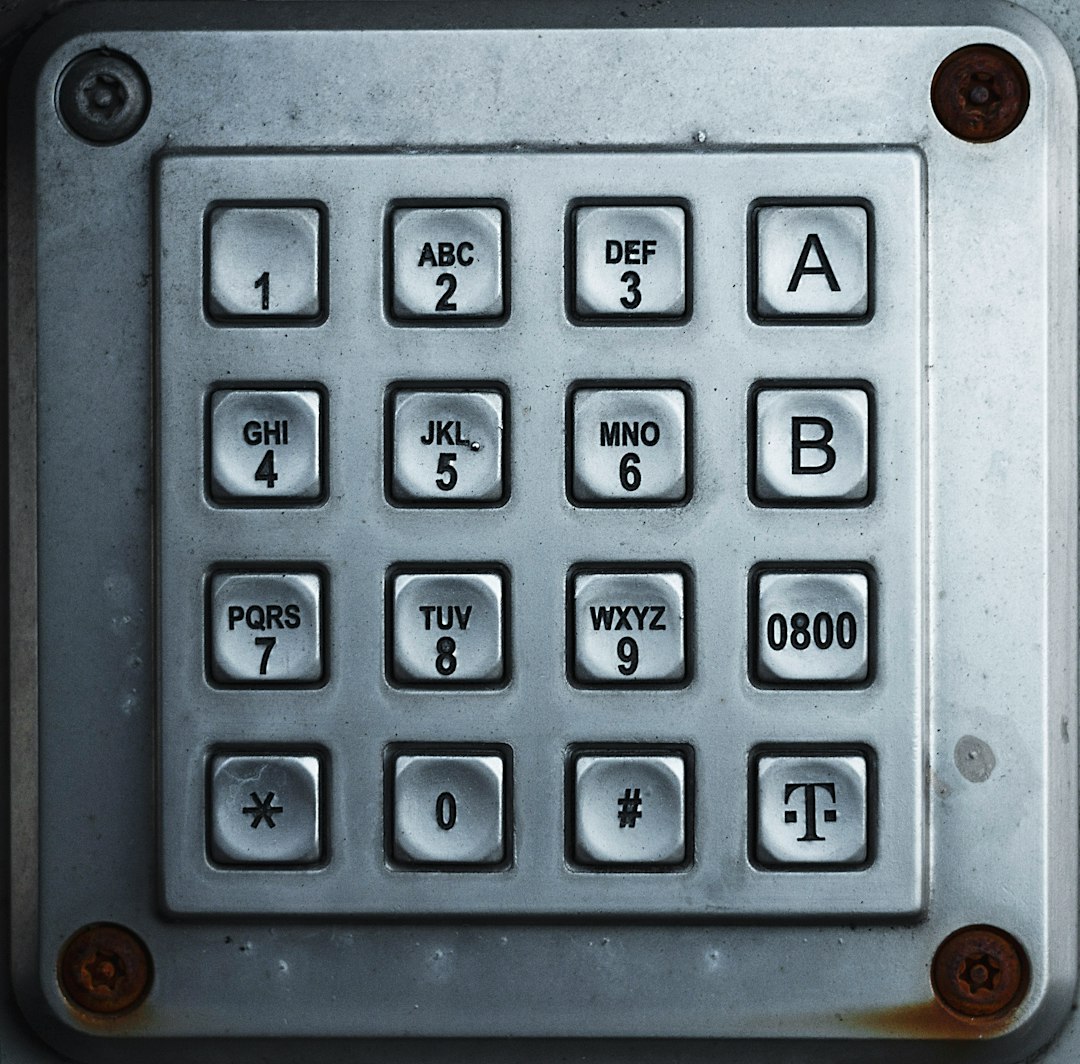
- Choose a PIN that is not easily guessable (avoid “0000” or “1234”).
- Store the PIN in a secure digital password manager.
- Write it down and keep it with your device documentation.
- Avoid sharing your PIN unless absolutely necessary.
Common Issues Related to the PIN
Users may encounter several problems related to the Find My Hub PIN. These can typically be resolved using the guidance already outlined above. The most common issues include:
- PIN Not Recognized: Double-check that you are entering the correct one and mind any case sensitivity (some devices differentiate letter cases).
- Too Many Incorrect Attempts: After several failed attempts, the device may lock you out temporarily or require a manual reset.
- No PIN Found or Sticker Missing: In rare cases, factory stickers fade or are missing — in which case, customer support is your best ally.
When to Seek Professional Help
If you’re unable to find the PIN or reset it after all available options, don’t hesitate to contact the manufacturer. Unauthorized tampering to bypass the PIN could void the device warranty or lead to unintended consequences. Professional technical support can safely walk you through the authentication and recovery process.
Conclusion
Knowing where to find your Find My Hub PIN can save you significant time and frustration. Whether it’s printed on the device, saved in the app, or recoverable through customer support, the key is to act smoothly and securely. With the proper tools and steps, managing your PIN and recovering access to your device is easier than it seems.
Frequently Asked Questions (FAQ)
- Q: Is the PIN the same for all Find My Hub devices?
A: No, each device typically has a unique default PIN, especially for security reasons. - Q: Can I use the same PIN for multiple Find My Hub devices?
A: Yes, if you manually set the same PIN on each device through the app or device settings. - Q: What should I do if I can’t find any documentation or labels?
A: Contact customer support with your device’s serial number and proof of purchase to retrieve or reset the PIN. - Q: Is the PIN stored on the SIM card inside the hub?
A: No, the PIN is associated with the device firmware or app account, not the SIM card. - Q: How often should I change my PIN?
A: It is advisable to change your PIN every 6–12 months or immediately after sharing access temporarily.