Your laptop wakes up. The fan spins. The lights blink. Maybe you hear a tiny beep. But the screen stays black, like it is trying to win a staring contest. Do not panic yet. A black screen does not always mean the laptop is dead. It could be the RAM. It could be the display. It could be the motherboard. Let’s play detective.
TLDR: If your laptop powers on but the screen stays black, start with the simple stuff. Check brightness, power, external monitors, and basic resets first. Then test the RAM, the display, and finally the motherboard. If there are burning smells, liquid damage, or no signs of life beyond a light, stop and get repair help.
First, What Does “Black Screen” Really Mean?
A black screen can mean a few different things. The laptop may be on, but not showing an image. The screen may be off. The backlight may be broken. The laptop may be failing to start correctly. Or the motherboard may be having a very bad day.
Before opening the laptop, look for clues. A good detective checks the room before blaming the butler.
- Do you hear the fan? That means power is getting somewhere.
- Do the keyboard lights turn on? Good sign.
- Does Caps Lock respond? Press it and see if the light changes.
- Do you hear startup sounds? The laptop may be working, but not displaying.
- Is there a logo for one second? That points to display or software issues.
If the laptop is completely silent, with no lights at all, that is more likely a power issue. But if it powers on and the screen stays dark, keep going.
Step 1: Try the Easy Fixes First
Yes, this part is boring. But boring fixes are the best fixes. They are free. They are fast. And they make you feel like a wizard.
- Turn up the brightness. It sounds silly. It works more often than you think.
- Disconnect everything. Remove USB drives, mouse, printer, HDMI cable, and memory cards.
- Hold the power button. Press and hold it for 15 seconds. Then wait. Turn it on again.
- Charge it. Plug it in for 20 minutes. Try again.
- Try another charger. Only use a correct, safe charger for your laptop.
Some laptops get stuck in a weird sleep mode. They are not dead. They are just confused. Like a cat in front of a mirror.
Do a Power Reset
A power reset drains leftover electricity. This can clear small hardware glitches.
- Turn off the laptop.
- Unplug the charger.
- If the battery is removable, remove it.
- Hold the power button for 30 seconds.
- Reconnect the charger.
- Turn the laptop on.
If your battery is not removable, still hold the power button for 30 seconds with the charger unplugged. Many modern laptops are sealed. They like secrets.

Step 2: Check If the Display Is the Problem
The laptop may be running fine. The screen may be the lazy part. To test this, use an external monitor or TV.
Connect the laptop to a monitor with HDMI, USB C, DisplayPort, or VGA if it is an older laptop. Then turn on the laptop. You may need to press a display shortcut. Common keys are Fn + F4, Fn + F5, Fn + F8, or a key with a little monitor icon.
If the external monitor works, the laptop is alive. Yay. The problem is probably in the display system.
Display Problems Can Be:
- Bad screen panel. The LCD itself may be damaged.
- Bad backlight. The picture is there, but too dark to see.
- Loose display cable. The cable inside may be partly unplugged.
- Damaged hinge cable. Opening and closing the lid can wear it out.
- Graphics chip issue. This is more serious and may involve the motherboard.
The Flashlight Test
This is a fun one. It makes you feel like a tech goblin in a cave.
Turn on the laptop. Shine a bright flashlight at the screen from the side. Look closely. Do you see a very faint logo, login screen, or desktop?
If yes, the display image exists. But the backlight is not working. The screen is not fully dead. It is just not glowing.
A backlight problem may come from the screen panel, display cable, or motherboard backlight circuit. A repair shop can test this fast.
Step 3: Listen for Beeps and Watch Blink Codes
Many laptops speak in tiny robot codes. They beep. They blink. They flash lights in patterns.
For example, a laptop may blink the Caps Lock light three times, pause, then repeat. That pattern may mean RAM failure. Another pattern may mean motherboard failure. Each brand is different.
Check the support page for your laptop model. Search for:
- your laptop model blink codes
- your laptop model beep codes
- your laptop model black screen power on
Write down the pattern. Do not guess. A blink code is like a treasure map. But only if you count correctly.
Step 4: Diagnose RAM Problems
RAM is your laptop’s short-term memory. It helps the computer think right now. If RAM is loose or bad, the laptop may power on but show nothing. No logo. No loading screen. Just darkness.
RAM problems are common. They are also often fixable.
Signs It Could Be RAM
- The laptop turns on, but there is no display.
- The fan spins loudly for a moment.
- Caps Lock or Num Lock blinks in a pattern.
- The laptop beeps after power on.
- The problem started after moving, dropping, or bumping the laptop.
- The laptop sometimes starts, but sometimes does not.
If your laptop has removable RAM, you can reseat it. That means removing it and putting it back in. Like telling it, “Sit properly.”
How to Reseat RAM Safely
Important: Turn off the laptop first. Unplug the charger. If possible, disconnect the battery. Touch metal before touching parts inside. This helps reduce static electricity.
- Open the bottom panel.
- Find the RAM sticks.
- Push the small clips outward.
- The RAM should pop up slightly.
- Remove it gently.
- Place it back at the same angle.
- Press it down until the clips lock.
Then try turning on the laptop.
If there are two RAM sticks, test one at a time. Put one stick in one slot. Try to boot. Then try the other stick. Then try the other slot.
This helps you find a bad stick or a bad RAM slot.

What If the RAM Is Soldered?
Many thin laptops have soldered RAM. That means the RAM is attached to the motherboard. You cannot simply remove it.
If soldered RAM fails, repair is harder. It may require board-level repair. In many cases, the whole motherboard is replaced. Not fun. Not cheap. Very rude of the laptop.
But do not jump to this conclusion too fast. Test the display first. Try external video. Check blink codes. Do the power reset. A black screen is sneaky.
Step 5: Check the Storage and Boot
A bad SSD or hard drive usually still lets you see a logo or message. You might see “No boot device.” You might see BIOS. So storage is not the first suspect when the screen is totally black.
But storage can sometimes cause weird startup hangs. If your laptop lets you enter BIOS, the screen is working. That changes the case.
Try pressing the BIOS key right after turning it on. Common keys are:
- F2
- F10
- F12
- Delete
- Esc
If you can see BIOS, your black screen may be a Windows, macOS, driver, or boot issue. That is a different adventure.
Step 6: Diagnose Motherboard Problems
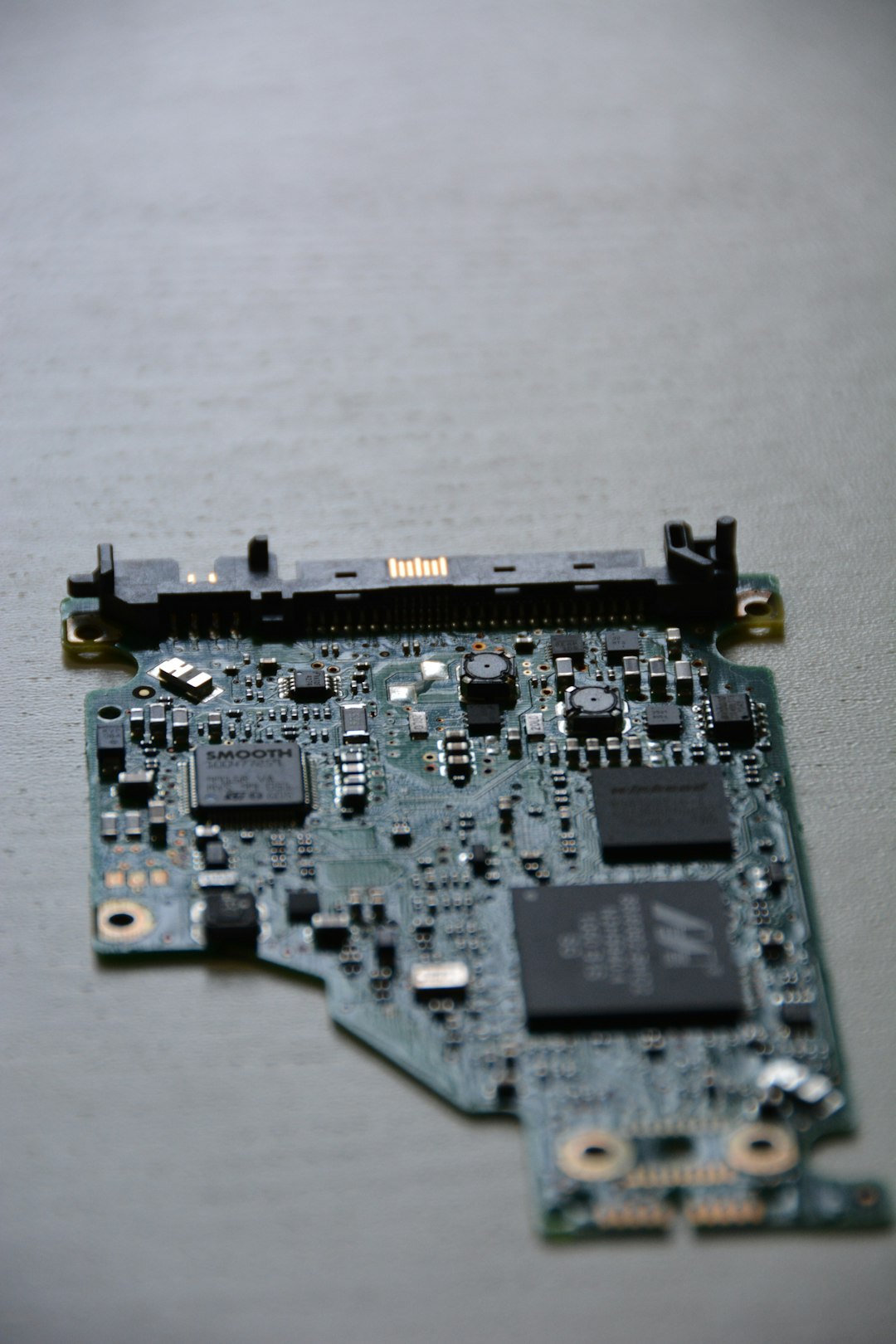
The motherboard is the laptop’s main city. Power, signals, memory, graphics, charging, and ports all meet there. If the motherboard has a problem, the laptop may power on but never reach the screen.
Motherboard problems can look like RAM or display problems. That is why you test the easy parts first.
Signs It Could Be the Motherboard
- No image on the laptop screen or external monitor.
- RAM has been tested and reseated.
- There are no useful beep or blink codes.
- The laptop turns on, then shuts off quickly.
- The fan spins at full speed forever.
- The laptop gets hot fast with no display.
- There was liquid damage.
- There is a burnt smell.
If you smell burning, stop. Unplug it. Do not keep pressing power. That is not troubleshooting. That is poking the dragon.
Motherboard Trouble After Liquid Damage
Liquid is a laptop villain. Coffee, soda, tea, water, soup. Yes, soup. We do not judge.
If liquid touched the laptop, turn it off immediately. Unplug it. Do not charge it. Do not use rice. Rice is for dinner, not precision electronics.
Liquid can corrode parts on the motherboard. It can also cause tiny short circuits. The laptop may power on, but the screen may stay black. A repair shop should clean and inspect the board.
Step 7: Check for Overheating and Dust
Dust can clog vents. Heat can make parts fail during startup. If the laptop fan screams like a tiny jet engine, check the vents.
Use compressed air carefully. Blow dust out of the vents. Do not spin the fan wildly for fun. Hold it still if you can. A fan spinning too fast can create voltage. Tiny fan, tiny drama.
If the laptop shuts off shortly after powering on, overheating could be part of the problem. Old thermal paste can also cause heat trouble. That repair is more advanced.
Step 8: Try a CMOS or BIOS Reset
The BIOS controls basic startup. Sometimes it gets confused. A BIOS reset may help.
Some laptops have a small pinhole reset button. Others let you reset BIOS by unplugging the internal battery and CMOS battery. Some do not make it easy.
Check the service manual for your model. Do not randomly remove parts. Laptops are packed tight. Small cables can tear. Tiny screws can vanish into another dimension.
When It Is Probably Not Worth DIY
DIY is great. But not every fix belongs on the kitchen table.
Get professional help if:
- The laptop is still under warranty.
- You see liquid damage.
- You smell burning.
- The RAM is soldered.
- The screen cable runs through a damaged hinge.
- You need motherboard repair.
- You are not comfortable opening the laptop.
Opening a laptop can void warranties. It can also break clips, cables, and connectors. If the laptop is valuable, be careful. Sometimes the smartest repair move is to stop.
A Simple Diagnosis Map
Use this quick path. It keeps the brain calm.
- Power reset. Try it first.
- External monitor. If it works, suspect screen, cable, or backlight.
- Flashlight test. If you see a faint image, suspect backlight.
- Beep or blink codes. Count them and search the model guide.
- Reseat RAM. Test one stick at a time if possible.
- Check BIOS access. If BIOS appears, the display works.
- Suspect motherboard. If all tests fail, the board may be the issue.
Final Thoughts
A laptop that powers on with a black screen is annoying. It feels mysterious. But it is not magic. Most cases come down to three big suspects: RAM, display, or motherboard.
Start simple. Reset power. Test an external monitor. Look for faint images. Listen for beeps. Count blinking lights. Reseat RAM if you can. Only then point a serious finger at the motherboard.
And remember: the laptop is not being dramatic on purpose. Probably. It just needs a careful diagnosis, a little patience, and maybe a tiny screwdriver.