Cybersecurity threats are evolving constantly, and one of the more persistent nuisances for Windows users is the PUADlManager:Win32/OfferCore virus. This classification of potentially unwanted application (PUA) typically sneaks into systems disguised as legitimate software or bundled with freeware, causing slowdowns, changes in browser behavior, and unwanted ads. While it’s not the deadliest form of malware, its presence compromises both performance and privacy.
TLDR: How to Remove PUADlManager:Win32/OfferCore
If you’ve been alerted by your antivirus program about PUADlManager:Win32/OfferCore, consider it a warning that potentially unwanted software has infiltrated your system. To remove it effectively, use a combination of manual uninstallation steps and reputable anti-malware tools. Disabling suspicious startup items and resetting browsers may also be necessary. Don’t ignore it—it can lead to more serious infections down the line.
What Is PUADlManager:Win32/OfferCore?
PUADlManager:Win32/OfferCore is a detection name used by Microsoft Defender and other antivirus tools to flag dubious software installers. Often bundled with third-party downloaders, this type of PUA is notorious for installing additional unwanted applications without direct user consent.
It usually gets delivered when you’re downloading:
- Free third-party software from unofficial websites
- Games, browser extensions, or media players
- Documents or tools that have been “cracked” or tampered with
While the installer itself might not be malicious in a traditional sense, its behavior is suspect—it often modifies system settings, alters browser homepages, and tracks user activity.
How to Know If Your PC Is Infected
Before removing the virus, it helps to identify signs of an infection. Look for the following symptoms:
- Sudden system slowdowns or high CPU usage
- Unexpected toolbars or browser add-ons
- Pop-ups and redirects to unknown websites
- Unfamiliar programs appearing in your installed apps list
- Antivirus alerting you to PUADlManager:Win32/OfferCore
These symptoms alone don’t confirm a virus, but if they appear together, there’s a good chance your system is compromised.
Step-by-Step Instructions to Remove PUADlManager:Win32/OfferCore
Step 1: Disconnect from the Internet
Start by disconnecting your computer from the internet. This stops the unwanted software from sending or receiving more data.
Step 2: Boot into Safe Mode
Putting your PC into Safe Mode disables third-party services and makes it easier to remove the virus:
- Press Win + R, type msconfig, and press Enter
- Under the Boot tab, select Safe Boot and choose Network
- Reboot your computer
Step 3: Uninstall Suspicious Software
Once in Safe Mode, go to:
- Control Panel → Programs → Uninstall a Program (Windows 10 users can use Settings → Apps)
Look for any recently installed questionable software, especially those you don’t remember installing. Uninstall them one at a time.
Step 4: Remove Extensions and Reset Web Browsers
Check your browsers for unauthorized extensions:
Chrome
- Menu → More Tools → Extensions
- Remove anything unfamiliar
Firefox
- Menu → Add-ons and themes → Extensions
- Disable/remove suspicious ones
Edge
- Menu → Extensions
- Look for newly added extensions you didn’t authorize
If changes were made to your homepage or search engine, reset the browser settings to default for extra protection.
Step 5: Use Anti-Malware Tools
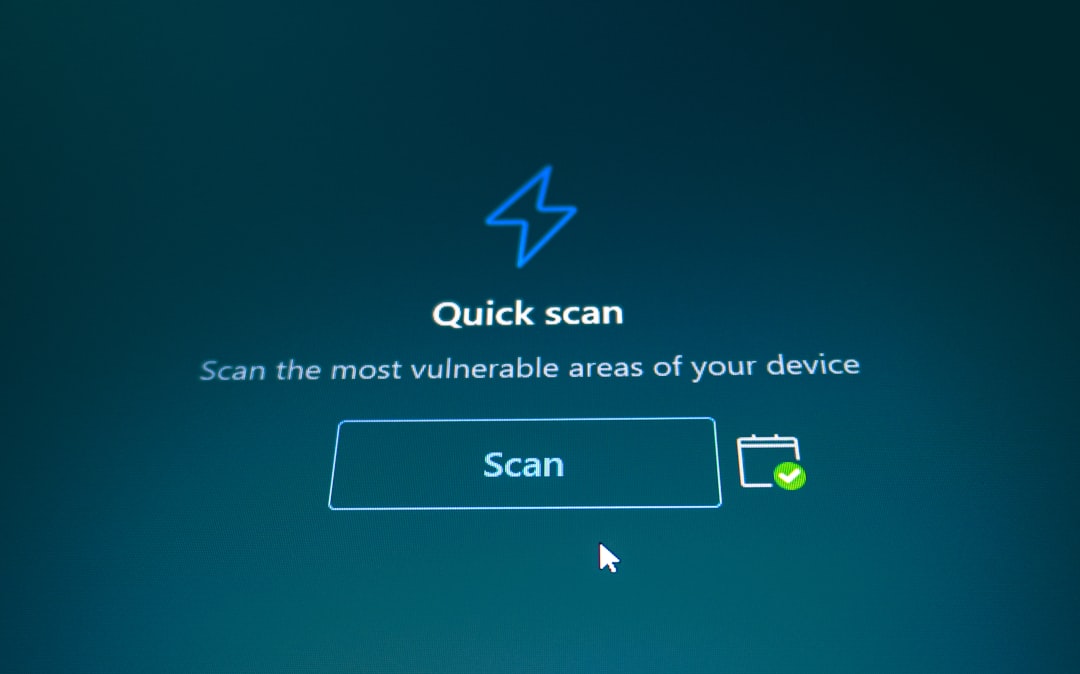
No removal is truly complete without scanning your system using dedicated anti-malware software. Trusted tools include:
- Malwarebytes: Free and effective at catching PUAs
- HitmanPro: Known for deep scans
- Microsoft Defender: Enable full-scan through Windows Security
Run a full system scan and allow the program to remove all detected threats. Reboot your system afterward.

Step 6: Check Startup Programs
Go to Task Manager → Startup tab and disable any unfamiliar or suspicious entries.
Many PUAs launch automatically with Windows, so removing them from startup ensures they won’t activate on boot.
Step 7: Clean Up System with Disk Cleanup
Clear remnants of the virus and free up space by running Disk Cleanup:
- Press Win + S and search for Disk Cleanup
- Select drive C:
- Check Temporary Files, Thumbnails, System Files, and confirm
How to Prevent This in the Future
Once cleaned, keeping your PC safe should be a top priority. Here’s how to reduce your risk of infection:
1. Download Only from Official Sources
Avoid third-party sites that bundle freeware with unwanted programs. Always go to the official website.
2. Keep Antivirus Software Updated
Enable real-time protection and make sure your virus definitions are current.
3. Read Installation Prompts Carefully
Always choose Advanced or Custom installation options. Uncheck any extra software being offered during setup.
4. Avoid Cracked Software and Keygens
These are textbook entryways for malware and PUAs. Licensed software is a much safer investment.
5. Use a Reputable Ad Blocker
Malicious ads can install unwanted apps. Blocking them helps reduce accidental clicks and drive-by downloads.
When Manual Removal Isn’t Enough
If you’ve followed all the steps and PUADlManager:Win32/OfferCore still keeps coming back, it may have set up hidden tasks in the system scheduler or been accompanied by more aggressive malware.
In that case, you might need to:
- Run in-depth scans with a combination of tools (Malwarebytes + Microsoft Defender + ESET)
- Check Windows Task Scheduler for recurring tasks
- Use system restore to roll back to a healthy restore point
- Consider a full system reset while backing up important files
Should You Be Worried?
PUADlManager:Win32/OfferCore might not be as dangerous as ransomware or spyware, but it’s still a threat. It opens a door for other security risks, eats away system resources, and undermines your control over your own device.
Therefore, catching and removing it promptly is essential to maintaining a safe digital environment.

Conclusion
Infections like PUADlManager:Win32/OfferCore remind us that vigilance is key when browsing, downloading, and installing software. With a thoughtful combination of manual cleanup, browser resetting, and good antivirus practices, you can effectively remove the threat and reclaim your PC’s performance and security.
Remember: prevention is always easier than removal. With smart online habits and tools designed to protect you, you’ll be well-equipped to avoid potentially unwanted applications in the future.