If you’re a student using Canvas for online learning, you’ve probably wondered just how much your instructors can see. One question that keeps popping up is whether Canvas can detect when you’re using a split screen. Whether you’re managing two windows at once for productivity or trying to sneak a peek at your notes during exams, it’s a fair question — and one that leads us straight into the intersection of educational platforms and digital privacy.
TL;DR
Canvas generally does not have the built-in capability to detect split screen usage on its own. However, during proctored exams, third-party tools like Respondus LockDown Browser or other monitoring software might be able to track window focus or unusual screen behavior. Split screening outside of exams is largely invisible to Canvas. That said, best practices for ethical academic behavior always remain the top priority.
Understanding Canvas: What It Tracks
To understand whether Canvas can detect split-screen usage, it’s important to first understand what Canvas is actually capable of tracking. Canvas by itself is primarily a Learning Management System (LMS). It offers the following functionalities:
- Hosting and delivering course content
- Tracking student progress
- Distributing quizzes and assignments
- Recording grades and feedback
- Facilitating discussions and communication between instructors and students
In terms of technical surveillance, Canvas is fairly limited. It logs specific interactions such as:
- Page visits (time-stamped)
- Quiz start and finish times
- Click paths through course content
- File uploads and assignment submissions
But what Canvas does not track inherently is your screen activity. For instance, it doesn’t know how many monitors you have, what other tabs you have open, or whether you’re using a split screen. That level of access would require permissions and tools that go far beyond Canvas’s base functionality.
The Role of Third-Party Tools
Here’s where things get a little more complicated. While Canvas itself can’t see your multi-window activity, many institutions pair Canvas with remote proctoring or monitoring tools in scenarios like online quizzes or high-stakes exams. These tools can go a step further.
Some commonly used third-party monitoring solutions include:
- Respondus LockDown Browser
- Proctorio
- Honorlock
- Examity
These tools can track a variety of behaviors, such as:
- Application switching
- Mouse activity and eye movement (if webcam-enabled)
- Screen focus and active window tracking
- Clipboard activity (copy/paste commands)
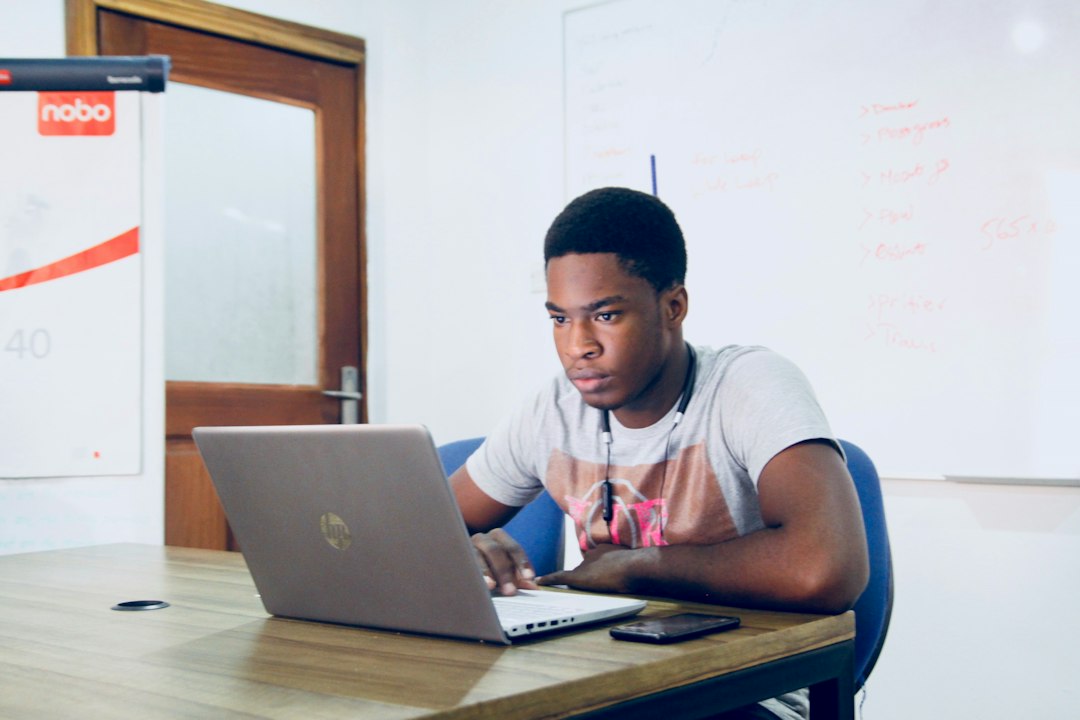
So, during a proctored exam, if you click outside the Canvas browser window or adjust your layout using a split screen — particularly to an unauthorized application or note — software like Respondus may flag that action as suspicious.
How Does Split Screen Behavior Impact Exams?
Split screen behavior can vary by operating system. Let’s take a look:
- Windows: Using the Snap feature or dragging windows to either side of the screen can create a visible split screen. Unless a LockDown Browser is in place, there is no restriction here.
- macOS: You can go into split screen mode by holding the green full-screen button. Again, Canvas alone won’t know you’ve done it, but other monitoring applications might take a screenshot or record the video feed during an exam.
- Tablets (iPad, Android): Many students use tablet split-screen mode to pull up notes while taking an exam or completing assignments. But once more, this escapes Canvas’s radar unless external proctor software is active that records screen behavior.
In most everyday uses — watching a lecture on one side of the screen while taking notes on the other — you’re not doing anything Canvas can detect or record. The red flag only rises when the context is high-stakes assessments facilitated with proctoring tools.
What About Instructors? Can They Tell?
Instructors have access to Canvas analytics which help them see:
- How long a student spent on a page
- Whether a student viewed a video or document
- Overall engagement metrics
What they can’t see is what’s happening on a student’s screen — unless enhanced monitoring tools are in place. Canvas analytics don’t capture whether another browser tab is open or if the window has been resized for a split view. The interface is designed to track platform usage, not complete personal computer behavior.
So in the case of an instructor noticing a short quiz completion time, they might get suspicious. But without a digital footprint from a monitoring tool, there’s no way for them to definitively say you were using a split screen.
Can Browser Activity Be Detected?
Though Canvas doesn’t monitor your screen, your browser can still tell a lot about you. Using JavaScript, websites can detect:
- Which tab is active
- Whether the window is minimized
- Whether the Canvas tab has lost focus
This functionality could be used by developers to build components that raise flags if the browser tab loses focus or if the window size changes dramatically. But again, Canvas alone doesn’t have built-in mechanisms to act on this data during your normal coursework.
Ethical Considerations and Privacy
While students may be curious about what they can get away with, it’s worth noting that human behavior and academic integrity go hand-in-hand. Educational institutions — and their software tools — must also consider privacy laws such as:
- FERPA (Family Educational Rights and Privacy Act) — U.S. law protecting student information
- GDPR (General Data Protection Regulation) — EU regulation that limits what data can be collected without consent
Any monitoring must be disclosed, agreed upon, and considered reasonable. Educational platforms like Canvas are legally bound to protect your personal data. That’s why most remote proctoring tools require explicit onboarding and disclosures.
Tips for Students Using Canvas Responsibly
If you’re not taking an exam, using split screen is usually perfectly fine — even helpful. But here are a few tips to keep in mind:
- Check course policies. Some instructors prohibit supplemental material during assessments.
- If an exam or quiz uses proctoring tools — assume that your screen activity can be seen.
- Avoid switching between tabs unless you’re certain it’s allowed.
- Reach out to your instructor if you’re not sure what’s permitted — they’ll usually appreciate the integrity.
Final Thoughts
So, can Canvas tell when you’re using split screen? No, not by itself. However, in the context of proctored exams, third-party tools may have the ability to detect or restrict such behavior. Most everyday study habits, like reading on one side while taking notes on the other, remain private and undetectable in the Canvas environment.
While digital monitoring continues to evolve, so too does the call for transparency in how online learning tools interact with students. In the meantime, focus on learning well, asking questions, and practicing academic honesty — that’s one window you’ll never need to minimize.