Use the WordPress recovery email first if your mailbox works; use WP-CLI if email is broken, the site is misconfigured, or you need admin access right now. WordPress powers about 43% of all websites, so password resets are not rare edge cases; they are routine site maintenance problems [source: W3Techs]. The recovery email is friendly and safe, but it depends on mail delivery. WP-CLI is faster and more direct, but it requires server access.
TLDR: If you can receive email from your WordPress site, click Lost your password? and reset it through the recovery link. If that email never arrives after 5 to 10 minutes, use WP-CLI to update the admin password from the command line. For example, a small agency locked out of 12 client sites may fix 9 with recovery email, while the remaining 3 need WP-CLI because SMTP or user email records are wrong. WP-CLI is usually the better choice for developers, hosts, and anyone with SSH access.
Quick comparison: recovery email vs WP-CLI
| Method | Best for | Requires | Main weakness |
|---|---|---|---|
| WordPress recovery email | Normal users and site owners | Access to the admin email inbox | Email may not arrive |
| WP-CLI | Developers, hosts, and technical admins | SSH or terminal access | Can feel intimidating if you dislike command lines |
The recovery email is the cleanest option. It uses the built-in WordPress reset flow and does not require database edits. You go to the login page, request a reset link, open the email, and set a new password.
The catch is that WordPress email can be flaky. A missing SMTP setup, a blocked PHP mail function, a spam filter, or a wrong user email can turn a 60-second task into a 30-minute headache.
Method 1: Reset a WordPress password using recovery email
This is the method most site owners should try first. It is simple, low risk, and does not require hosting control panel access.
- Go to your WordPress login page, usually
yourdomain.com/wp-login.php. - Click Lost your password?.
- Enter your username or admin email address.
- Check your inbox for the reset link.
- Click the link and create a strong new password.
- Log in and confirm that your admin role still works.
If you manage several inboxes, check the email tied to the user account, not only the site owner’s business email. WordPress sends the reset link to the address stored in that user profile.
Use this method when:
- You know the admin username or email.
- The mailbox is active.
- The site can send email properly.
- You do not have SSH access.
- You want the safest non-technical route.
Expect to waste time on spam folders. Some hosts send WordPress email from generic server addresses, which mail providers may distrust. Check spam, promotions, quarantine, and any security filter your company uses.
What to do when the recovery email never arrives
Wait a few minutes, but do not wait forever. If there is no email after 10 minutes, assume something is wrong and move on.
Common causes include:
- Wrong email address: The admin account may use an old employee inbox.
- Broken mail setup: PHP mail may be disabled on the server.
- SMTP plugin failure: The SMTP password or API key may have expired.
- Spam filtering: The reset email may be blocked before it reaches the inbox.
- Compromised site: Malware may have changed users or blocked normal mail.
If any of these sound familiar, WP-CLI becomes much more attractive.
Method 2: Reset a WordPress password with WP-CLI
WP-CLI lets you manage WordPress from the command line. It can update users, plugins, themes, options, and more. For password recovery, its best trick is simple: it can change a user password without needing the old one or a reset email.
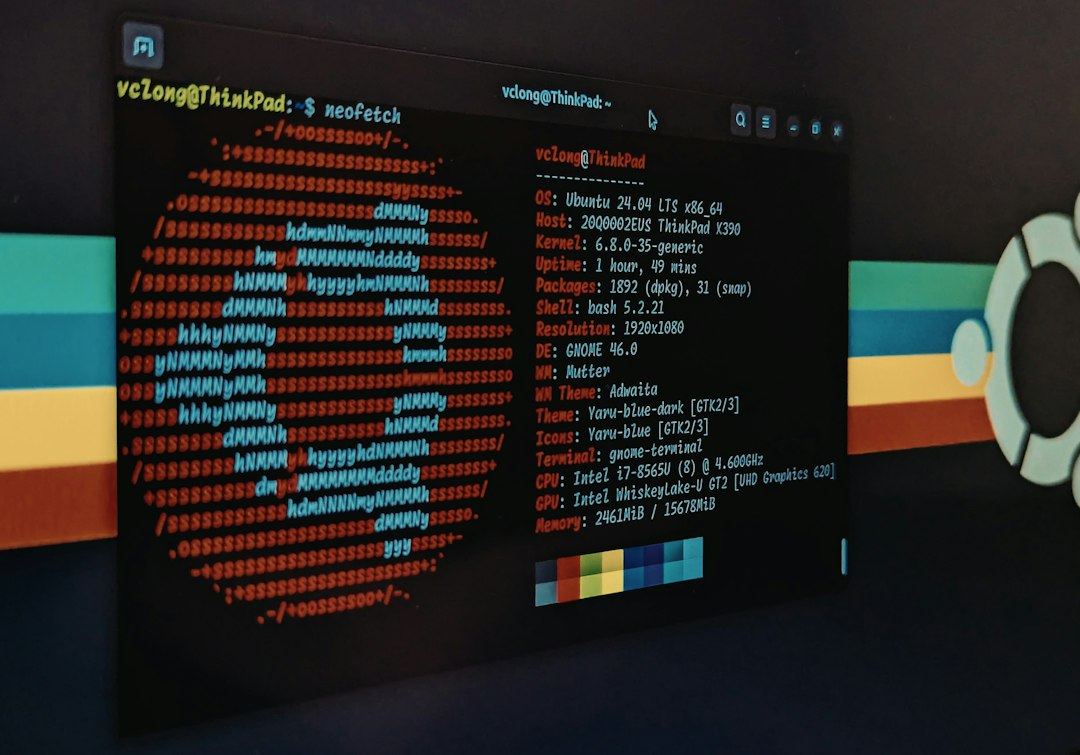
First, connect to your server using SSH. Then move into the WordPress installation directory. This is usually the folder containing wp-config.php.
cd /path/to/your/wordpress/siteNext, list the users so you can identify the admin account:
wp user listYou will see columns such as ID, user_login, display_name, user_email, and roles. Find the account with the administrator role.
Then update the password:
wp user update admin_username --user_pass="NewStrongPasswordHere"You can also use the user ID instead of the username:
wp user update 1 --user_pass="NewStrongPasswordHere"If the command succeeds, go back to /wp-login.php and sign in with the new password.
Use WP-CLI when:
- The password reset email does not arrive.
- You have SSH access to the server.
- The admin email address is wrong or abandoned.
- You are recovering a staging or production site fast.
- You suspect the mail system is broken.
Honestly, it feels like overkill the first time you use it. Then you realize it can solve in 20 seconds what the email method failed to fix for half an hour.
Security notes before you reset anything
Password recovery is a sensitive action. Treat it like a security event, not just an annoying login issue.
- Use a strong temporary password and change it again after login if you shared it with a developer.
- Do not send passwords over plain email or team chat without protection.
- Check the user list for unknown admin accounts after you regain access.
- Enable two-factor authentication for administrator accounts.
- Review recent plugins if the lockout seems suspicious.
After using WP-CLI, your shell history may store the password command. That is easy to forget. If the server keeps command history, clear or edit it after the reset.
history -cSome systems handle history differently, so confirm your server behavior. Better yet, ask your hosting provider how command history is stored.
When neither method works
If the recovery email fails and WP-CLI is not available, you still have options. They are less pleasant, but they work.
- Use phpMyAdmin to edit the user password in the database.
- Ask your host to run the reset for you.
- Restore a backup if the account was damaged or deleted.
- Create a new admin user through database access or a temporary script.
Database edits should be handled with care. One bad change can break logins or damage user data. Always take a backup before editing database tables.
Which option should you choose?
Choose the recovery email when you are a site owner with a working inbox. It is the least risky path and keeps everything inside WordPress. It also avoids direct server changes.
Choose WP-CLI when speed matters and you have terminal access. It is ideal for developers, agencies, sysadmins, and hosting support teams. It also cuts through mail problems, which are the most common reason resets fail.
A smart workflow is simple:
- Try the WordPress recovery email.
- Wait 5 to 10 minutes.
- Check spam and confirm the right inbox.
- If nothing arrives, switch to WP-CLI.
- After login, audit users, email settings, and security plugins.
Password resets are not glamorous, but they are high impact. The best method is the one that restores access safely with the least drama. For most people, that starts with the recovery email. For technical users, WP-CLI is the reliable backup plan that often becomes the preferred fix.