LSASS.exe should usually be left alone. It is a real Windows process that helps your PC handle logins, passwords, security tokens, and account checks. If it is running from C:\Windows\System32, has a Microsoft signature, and there is only one main copy, it is probably doing its normal job.
TLDR: LSASS.exe is the Windows security guard that checks who you are and what you can access. A normal PC usually has one LSASS process, and it should run from C:\Windows\System32\lsass.exe. For example, if a help desk analyst sees lsass.exe running from a user Downloads folder, that is a giant red flag. In many real attacks, security tools flag LSASS access because thieves want password hashes and login tokens, not your vacation photos.

What Is LSASS.exe?
LSASS stands for Local Security Authority Subsystem Service. Yes, the name sounds like it was built by a committee in a basement. Still, the job is easy to understand.
LSASS is the security desk of Windows. When you type your password, unlock your screen, connect to a domain, or access a protected file, LSASS helps decide if you are allowed in.
It also works with other Windows security parts. These include authentication packages, security policies, and access tokens. That sounds fancy. Think of it as a nightclub wristband system. If you have the right wristband, you get into the VIP area. If not, sorry buddy.
Where Should LSASS.exe Be Located?
The real file should be here:
- C:\Windows\System32\lsass.exe
That path matters a lot. Malware often tries to copy trusted names. It may use names like:
- Isass.exe with a capital “I” instead of a lowercase “l”
- lsasss.exe with an extra “s”
- lsass.exe running from Temp, Downloads, AppData, or a random folder
Honestly, it feels like attackers rely on the fact that “l” and “I” look almost the same in some fonts. Rude. Effective, but rude.
Why LSASS Is So Important
LSASS is a favorite target because it handles login material. That can include password hashes, Kerberos tickets, and session tokens. Attackers want this data because it may let them move across a network.
They may try to read LSASS memory. They may try to dump it. They may try to fool antivirus tools. The goal is simple. Steal access. Then pretend to be someone else.
This is why defenders watch LSASS so closely. If strange tools touch it, alarms should ring.
Is LSASS.exe a Virus?
Usually, no. LSASS.exe is a normal Windows process. Killing it can crash Windows or force a restart. So do not panic-click “End task” just because the name looks scary.
But malware can fake the name. That is the annoying part. A file named lsass.exe is not automatically safe. You must check the location, signature, behavior, and related activity.
Normal LSASS Behavior
Normal LSASS behavior can look like this:
- It starts when Windows starts.
- It runs as SYSTEM.
- It lives in C:\Windows\System32.
- It has a valid Microsoft Windows digital signature.
- It uses low CPU most of the time.
- Its process ID can change after reboot. That is fine.
Short CPU spikes can happen. Login storms can do that. Domain checks can do that. Security software can also inspect it. But LSASS sitting at high CPU for a long time deserves a closer look.
Signs of Suspicious LSASS Activity
Here are the big warning signs:
- Wrong file path: LSASS running from AppData, Temp, Downloads, or a strange folder.
- Multiple weird copies: More than one suspicious lsass.exe process.
- Bad spelling: Names like Isass.exe, lssas.exe, or lsasss.exe.
- No Microsoft signature: The real file should be signed by Microsoft.
- Strange parent process: A script, office app, browser, or random tool started it.
- Memory access attempts: Another process tries to read LSASS memory.
- Dump files appear: Large files show up after LSASS was accessed.
- Security alerts: Defender or EDR reports credential theft behavior.
Expect to waste time on false alarms here. Some admin tools and security agents touch LSASS for valid reasons. Still, every strange access attempt should have a clean explanation.
How to Check LSASS Safely
Use simple checks first.
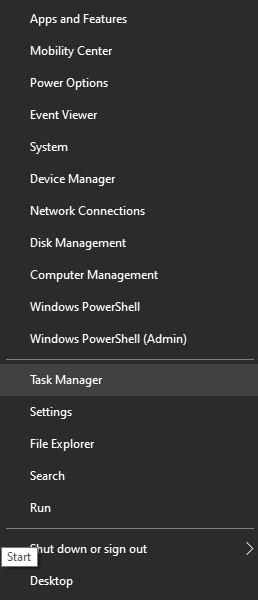
- Open Task Manager.
- Find Local Security Authority Process.
- Right-click it and choose Open file location.
- Confirm it opens C:\Windows\System32.
- Right-click the file, open Properties, and check Digital Signatures.
If the file opens from a strange path, disconnect the machine from the network. Do not delete random files yet. Collect details first. Then run a full scan with Microsoft Defender or your company security tool.
Logs That Help Detect LSASS Attacks
Windows logs can tell a useful story. They are not always pretty. Some logs feel like reading a phone book during a fire drill. But they help.
Watch for these events:
- Event ID 4624: Successful logon.
- Event ID 4625: Failed logon.
- Event ID 4672: Special privileges assigned.
- Event ID 4688: New process created, if process auditing is enabled.
- Sysmon Event ID 10: Process access, useful for LSASS memory access checks.
- Sysmon Event ID 1: Process creation.
- Sysmon Event ID 11: File creation, useful for dump file spotting.
Good detection often connects several clues. One failed login is not proof. One admin tool is not proof. But a strange process accessing LSASS, followed by a large dump file, followed by admin logons to other machines? That smells bad.
How Attackers Abuse LSASS
Attackers do not usually attack LSASS for fun. They attack it for keys. If they get the right credential material, they may jump to file servers, domain controllers, or admin workstations.
Common abuse patterns include:
- Trying to read LSASS memory.
- Creating a dump of the LSASS process.
- Running credential theft tools.
- Using stolen tokens to access other systems.
- Disabling security features before touching LSASS.
This is why quick detection matters. A stolen password hash can turn one infected laptop into a much bigger mess.
How to Protect LSASS
Start with practical defenses.
- Keep Windows updated. Old systems are easy targets.
- Use Microsoft Defender or EDR. Make sure alerts are monitored.
- Enable Credential Guard on supported systems.
- Use LSASS protection where available.
- Turn on attack surface reduction rules that block credential stealing from LSASS.
- Limit local admin rights. Fewer admins means fewer easy wins for attackers.
- Use strong passwords and MFA. Yes, MFA again. It helps.
- Monitor process creation. This catches many suspicious tools early.
For companies, the best setup is layered. Endpoint protection helps. Logging helps. Least privilege helps. User training helps too, even if nobody loves another security slideshow.
What to Do If LSASS Looks Suspicious
Do not reboot right away unless you must. A reboot can erase useful evidence. Do this instead:
- Disconnect the device from Wi-Fi or Ethernet.
- Take screenshots of the process, path, and alerts.
- Note the username, time, and network name.
- Run a security scan.
- Contact IT or your security team.
- Change passwords from a clean device if credential theft is suspected.
If this is a business computer, treat it as a possible incident. One machine can expose more accounts. Speed matters.
Simple Rule to Remember
Real LSASS is boring. It sits in System32. It starts with Windows. It wears a Microsoft signature. It does not appear in your Downloads folder wearing fake glasses and a mustache.
If LSASS looks odd, check it. If another process pokes LSASS memory, investigate fast. If alerts mention credential dumping, take them seriously. Windows needs LSASS, but attackers love it too. That is the whole trick.