Error 20 is not a single, universal failure code. It appears in different environments, including Windows, SSL/TLS connections, browsers, backup tools, databases, installers, and business software. Because the same number can mean different things depending on context, the safest approach is to identify where the error appears, what changed recently, and which system component is reporting it.
TLDR: Error 20 usually points to a problem with access, configuration, certificates, drivers, or software dependencies, but its exact meaning depends on the platform. For example, an SSL-related Error 20 may indicate that a certificate chain cannot be verified, while a Windows-related Error 20 may involve a device, service, or file system issue. In a practical support scenario, a company with 50 workstations might see Error 20 on only 4 machines after a security update, suggesting a local configuration or certificate trust problem rather than a total system failure.
Why Error 20 Is Confusing
The main reason Error 20 causes confusion is that many systems use numbered error codes internally. These numbers are often meaningful only inside the product, protocol, or operating system that generated them. A user may search for “Error 20” and find explanations related to SSL certificates, Windows devices, SQL tools, cloud software, or file permissions, even though only one of those applies to their situation.
For that reason, the phrase “Error 20” should always be interpreted with context. Important context includes:
- The application or service that displayed the error
- The exact message text shown before or after the number
- The operating system, browser, or server involved
- Recent changes, such as updates, certificate renewals, migrations, or new security policies
- Whether the issue affects one user, several users, or everyone
Without this information, troubleshooting can quickly become guesswork. A disciplined investigation usually resolves the issue faster than repeatedly restarting devices or reinstalling software.

Error 20 in Windows Environments
In Windows, Error 20 may appear in several forms depending on the component involved. It can be associated with device problems, file access failures, driver conflicts, service startup issues, or application-specific faults. Sometimes the visible message includes wording such as “The system cannot find the device specified” or appears inside an application log rather than as a standard Windows pop-up.
Common Windows-related causes include:
- Driver or hardware communication problems: A printer, USB device, storage controller, or network adapter may fail to respond correctly.
- Permission restrictions: The user or service account may not have rights to access a file, folder, registry key, or network path.
- Corrupted system files: Damaged Windows components can cause services or applications to return unexpected codes.
- Conflicting updates: A recent Windows update, driver update, or security patch may change how a device or application behaves.
- Path or resource availability issues: A mapped drive, external disk, or shared folder may no longer be available.
A serious Windows investigation should begin with Event Viewer. Look under Windows Logs and Application and Services Logs for entries around the exact time the error occurred. If Error 20 appears during hardware use, Device Manager should also be checked for warning icons, disabled devices, or recently changed drivers.
Basic repair steps may include restarting the affected service, reconnecting the device, running sfc /scannow, reviewing user permissions, or rolling back a recent driver. However, administrators should avoid making broad changes until they have identified the component producing the error.
Error 20 in SSL and Certificate Problems
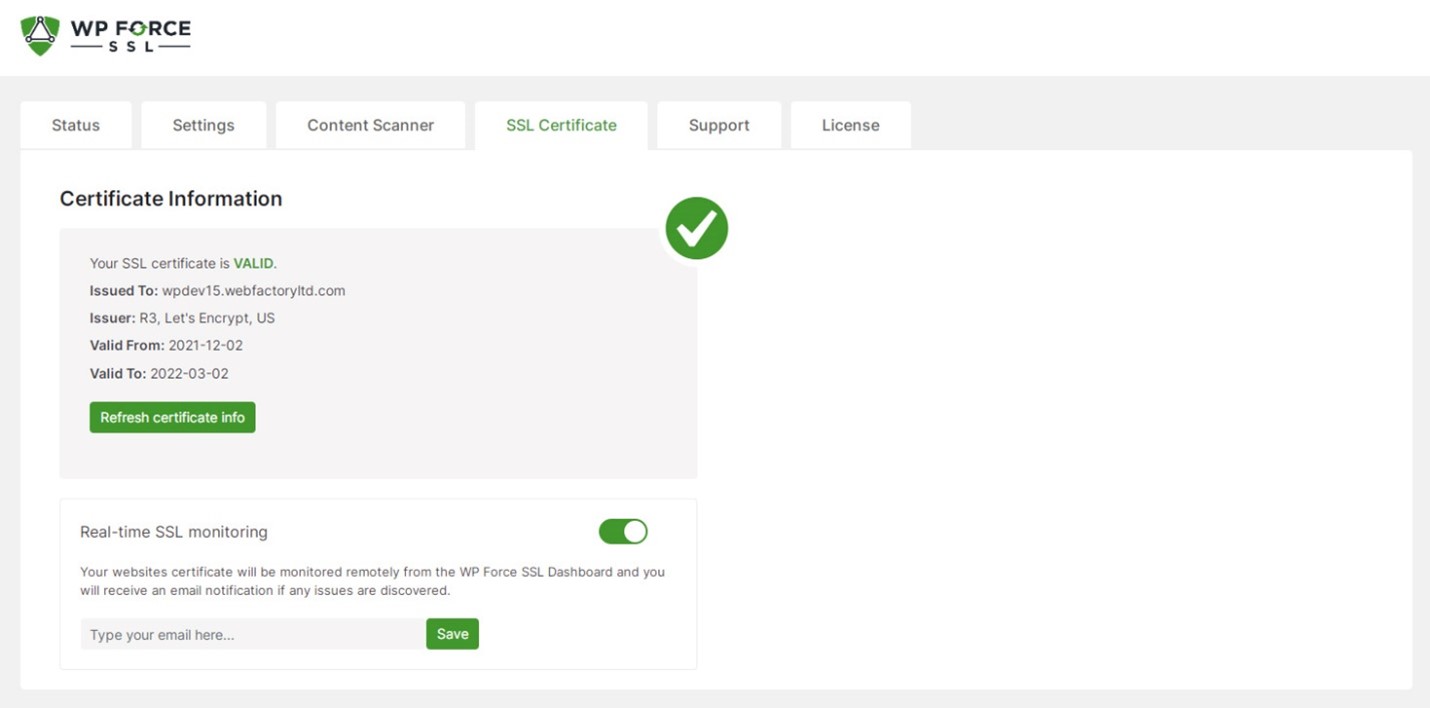
One of the most common technical meanings of Error 20 appears in SSL/TLS certificate validation. In tools based on OpenSSL, an error similar to “verify error:num=20:unable to get local issuer certificate” means the client cannot build a trusted chain from the website or server certificate back to a recognized certificate authority.
This does not always mean the website certificate itself is expired or fake. More often, it means the certificate chain is incomplete, the intermediate certificate is missing, or the client does not trust the issuing authority.
Typical SSL-related causes include:
- Missing intermediate certificates: The server sends its own certificate but not the intermediate certificate required to complete the chain.
- Outdated trust store: The client system, browser, container, or application has an old list of trusted root certificates.
- Self-signed certificates: Internal systems may use certificates that are not trusted by default.
- Incorrect certificate installation: The server may be configured with the wrong certificate bundle.
- Corporate inspection proxies: Security appliances can intercept traffic and present certificates that endpoints do not trust.
For example, a web application may work in Chrome on an employee’s laptop but fail inside a Linux-based automation script. The reason may be that Chrome uses an updated certificate store, while the script runs in a container with outdated CA certificates. In that case, the solution is not to disable SSL verification, but to update the container’s certificate authority package or install the correct internal CA certificate.
Security teams should treat SSL Error 20 carefully. Bypassing certificate validation can expose systems to man-in-the-middle attacks. A proper fix should maintain encryption and trust validation, not weaken it.
Error 20 in Software Applications
Many software vendors also use Error 20 as an internal application code. In these cases, the number may refer to licensing, database access, installation failure, authentication, corrupted configuration files, or a missing dependency. Because vendor-defined codes vary widely, the surrounding message and application log are essential.
Common software-related causes include:
- License validation failure: The application cannot confirm a valid license due to expired credentials, blocked network access, or server-side issues.
- Database connection problems: Incorrect credentials, unavailable database servers, or blocked ports can trigger application-level errors.
- Missing runtime components: Software may require specific versions of .NET, Java, Visual C++ redistributables, Python libraries, or database drivers.
- Configuration corruption: Damaged settings files or incomplete upgrades may prevent the application from loading correctly.
- Security software interference: Antivirus, endpoint detection tools, or application control policies may block normal execution.
In business environments, it is useful to compare affected and unaffected systems. If Error 20 appears on every workstation after an application upgrade, the problem may be in the new version or its deployment package. If it appears on only one machine, the cause is more likely local: permissions, cache, registry settings, missing dependencies, or endpoint security rules.
A Practical Troubleshooting Method
Instead of assuming what Error 20 means, follow a structured process:
- Capture the exact message. Screenshot the error and copy any text from logs.
- Identify the source. Determine whether the code comes from Windows, a browser, OpenSSL, an application, or a server.
- Check timing. Confirm whether the issue began after an update, renewal, migration, password change, or policy rollout.
- Review logs. Use Event Viewer, application logs, server logs, browser developer tools, or command-line output.
- Compare systems. Test another user account, another machine, another network, or another browser.
- Apply the narrowest fix first. Avoid reinstalling or resetting systems before testing targeted corrections.

This approach reduces downtime and prevents unnecessary changes. It also creates a clear audit trail, which is especially important in regulated industries or environments with strict change control.
When to Escalate the Issue
Error 20 should be escalated when it affects production systems, payment flows, identity services, backups, encryption, or shared infrastructure. It should also be escalated if certificate warnings appear, because trust-chain problems can indicate serious security exposure or misconfiguration.
Before contacting a vendor or internal IT team, collect the following:
- The full error message and code
- Application name and version
- Operating system and patch level
- Steps that reproduce the issue
- Recent changes to software, certificates, accounts, or networks
- Relevant log excerpts from the same timestamp
Providing this information can significantly reduce resolution time. A support engineer can distinguish much faster between a certificate-chain issue, a permission failure, a driver problem, and an application-specific defect.
Final Thoughts
Error 20 is best understood as a signal, not a diagnosis. Across Windows, SSL, and software platforms, it commonly points to trust, access, configuration, dependency, or communication problems. The correct fix depends entirely on the system reporting the error and the circumstances around it.
A trustworthy response is to verify the source, examine logs, consider recent changes, and apply targeted fixes. Whether the root cause is a missing SSL intermediate certificate, a Windows driver conflict, or a broken software configuration, careful troubleshooting will produce a safer and more reliable result than quick assumptions.