Factory resetting a Chromecast can solve persistent setup problems, remove an old Google account, clear Wi Fi configuration, or prepare the device for sale or handoff. Because a reset erases the Chromecast’s saved settings and returns it to its original factory state, it should be done carefully and only when simpler fixes, such as restarting the device or router, have not worked.
TLDR: A factory reset wipes your Chromecast’s settings, including Wi Fi details and linked account information, and restores it to its default setup state. You can reset most Chromecast models either from the Google Home app or by holding the physical button on the device. If the Chromecast is not accessible in the app, use the hardware button method. After the reset, you will need to set it up again as if it were new.
Before You Reset: What a Factory Reset Does
A factory reset is more serious than a restart. Restarting simply turns the Chromecast off and back on, while a factory reset erases the device’s configuration. This includes the Wi Fi network it remembers, the room assignment in Google Home, device name, linked settings, and other local preferences.
A reset is commonly useful when:
- The Chromecast will not connect to Wi Fi after repeated attempts.
- You changed routers or network names and setup keeps failing.
- You are giving away, selling, or recycling the device.
- The Chromecast appears in the wrong home or under the wrong account.
- Streaming apps repeatedly fail and normal troubleshooting has not helped.
Important: A factory reset cannot be undone. Once the process is complete, you must set up the Chromecast again using the Google Home app and a compatible phone or tablet.
Method 1: Factory Reset Using the Google Home App
If your Chromecast is still visible in the Google Home app and your phone is connected to the same home or account, this is usually the easiest method. It is especially convenient for Chromecast models that are already online and responding normally.
- Open the Google Home app on your phone or tablet.
- Make sure you are signed in to the Google account associated with the Chromecast.
- Select the correct home, if you have more than one home configured.
- Tap the Chromecast device you want to reset.
- Open Settings, usually shown as a gear icon.
- Tap More or the three dot menu, depending on your app version.
- Select Factory reset.
- Confirm your choice when prompted.
The Chromecast will begin erasing its settings. During this time, do not unplug it unless the app clearly indicates that the process has failed or the device has been unresponsive for an extended period. The TV screen may go blank, show a reset message, or display the setup screen after the reset is complete.
If you cannot find the factory reset option, update the Google Home app and check that you are viewing the correct device. If the Chromecast is offline, missing, or linked to another account, use the physical button method instead.
Method 2: Factory Reset With the Physical Button
Every Chromecast has a hardware reset method. This is the most reliable approach when the device is not appearing in the Google Home app, cannot connect to Wi Fi, or belongs to a previous user’s account.
The general process is simple: keep the Chromecast plugged into power and hold its button until the light changes in the required way. The exact timing can vary slightly by model, but the principle is the same.
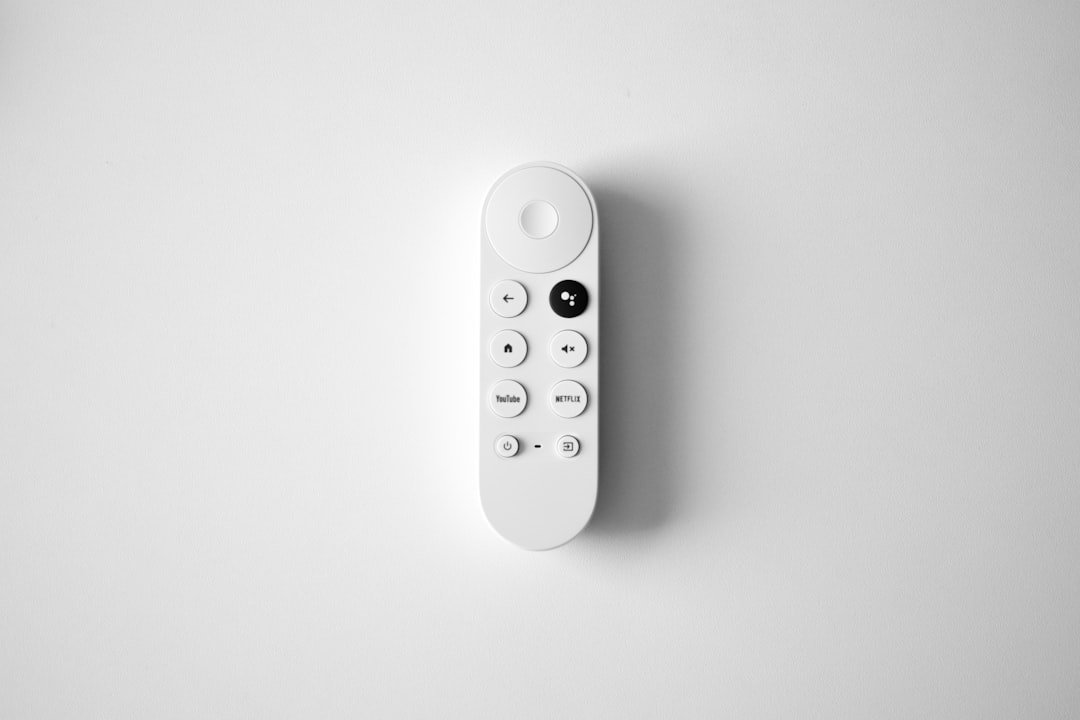
Chromecast with Google TV
- Leave the Chromecast connected to the TV and plugged into power.
- Find the small button on the Chromecast device itself, not on the remote.
- Press and hold the button.
- Keep holding it while the LED light changes color or begins blinking.
- Release the button when the light indicates the reset has started, commonly after it turns solid or changes blinking pattern.
After release, the device should restart and return to the initial setup screen. This may take several minutes.
Older Chromecast Models
For older Chromecast devices, including earlier HDMI dongle models, the process is similar:
- Make sure the Chromecast is powered on.
- Press and hold the button on the Chromecast.
- Continue holding it for around 20 to 30 seconds.
- Watch the LED light. It will usually blink and then change state.
- Release the button when the reset begins.
Do not disconnect power while holding the button. The device must remain powered for the reset command to work.
After the Reset: Setting Up Chromecast Again
Once the factory reset is complete, the Chromecast behaves like a new device. You will need to add it again in the Google Home app.
- Connect your phone or tablet to the Wi Fi network you want the Chromecast to use.
- Open the Google Home app.
- Tap Add or Set up device.
- Choose New device.
- Select your home and follow the on screen instructions.
- Confirm any code shown on the TV screen.
- Choose the correct Wi Fi network and finish setup.
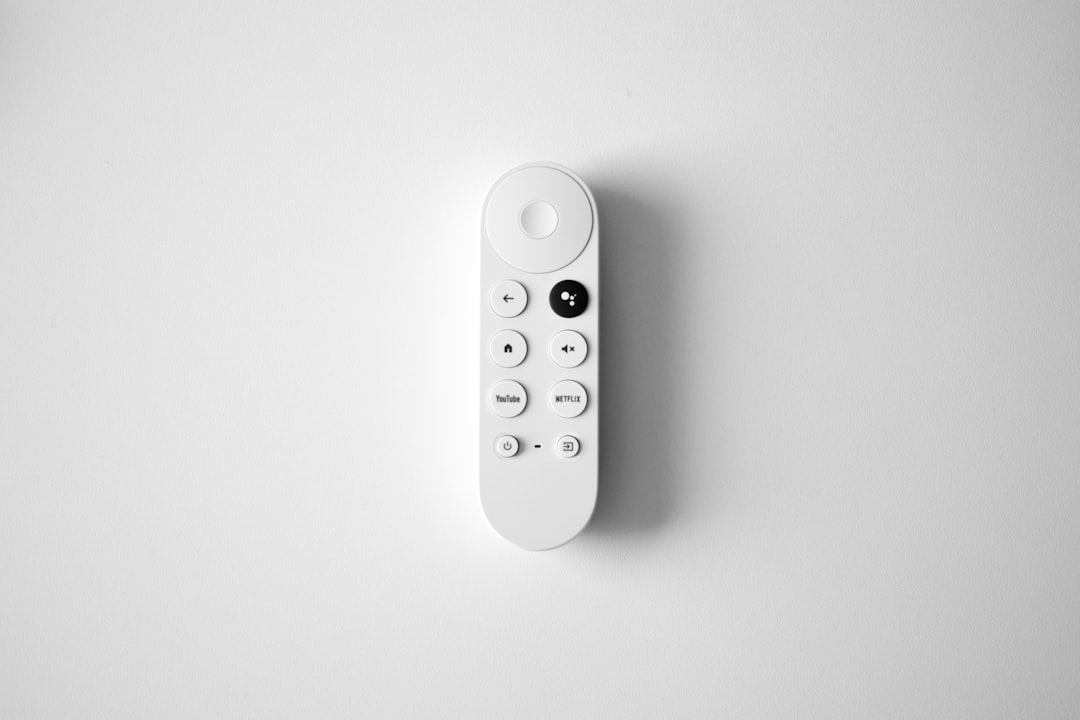
If you are setting up a Chromecast with Google TV, you may also be asked to pair the remote, sign in to your Google account, install apps, and choose privacy or personalization settings. Take your time with these steps, especially if the device will be used by multiple people in your household.
When a Factory Reset Does Not Fix the Problem
A reset is useful, but it is not a cure for every issue. If the Chromecast still fails after being reset, consider these possibilities:
- Power problem: Use the original power adapter if possible. Some TV USB ports do not provide stable power.
- Wi Fi issue: Check router distance, signal strength, and whether the network uses a supported security type.
- HDMI problem: Try another HDMI port on the TV.
- App or account issue: Update the Google Home app and verify you are using the correct Google account.
- Hardware failure: If the device overheats, restarts constantly, or never shows a setup screen, it may be defective.
It is also worth restarting your router and phone before assuming the Chromecast is at fault. Network devices can retain temporary errors that interfere with discovery and setup.
Factory Reset vs Restart: Choose the Right Option
If your Chromecast is slow, temporarily frozen, or not appearing in a casting list, try a restart first. You can restart it by unplugging the power cable, waiting about 30 seconds, and plugging it back in. Some models also allow restart through the Google Home app.
Use a factory reset only when you need a clean configuration or when ordinary troubleshooting has failed. This distinction matters because a reset costs more time and removes saved settings, while a restart is quick and non destructive.
Security and Privacy Considerations
If you are selling or giving away a Chromecast, a factory reset is strongly recommended. It helps ensure that the next person cannot use your previous configuration or see device information associated with your home setup. While most sensitive account access is protected by Google authentication, removing the device from your home environment is still good privacy practice.
You may also want to open the Google Home app and verify whether the old Chromecast entry remains listed. If it does, remove it from your home after the reset. This keeps your device list accurate and prevents confusion later.
Final Thoughts
Factory resetting a Chromecast is straightforward when you choose the correct method. If the device is accessible in the Google Home app, reset it from the app for convenience. If it is offline, unresponsive, or tied to another account, use the physical button on the Chromecast itself.
After the reset, set it up again carefully, confirm that it connects to the correct Wi Fi network, and test casting from more than one app. Done properly, a factory reset can restore normal operation and give you a clean, reliable starting point.